How to Transfer Data from Android to iPhone: The 2026 Guide
Moving from Android to iOS is easier than it used to be. Apple’s official migration tool can copy most important content during setup, while cloud storage and a USB drive cover files left behind. Here is the quickest way to choose the right method and complete the transfer safely.
Method 1: Move to iOS — the best option for a new iPhone
Apple’s Move to iOS app is the simplest way to transfer data to an iPhone during initial setup. On supported phones running a compatible version of Android 17, the transfer may also be available without installing the app.
Before you start
Turn on Wi-Fi and connect both phones to power.
Keep the devices close together. You can also connect them with a compatible USB-C cable for a faster transfer.
Check that the iPhone has space for all content, including files on a microSD card.
Use a new or erased iPhone. If setup is already complete, choose a manual method below unless you are willing to erase the device.
Update Chrome on Android if you want to move browser bookmarks.
Transfer your data
Turn on the iPhone and place it near the Android smartphone.
Follow setup until Transfer Your Apps & Data, then choose From Android.
Open Move to iOS on Android. If needed, scan the QR code shown by the iPhone to find the app.
Enter the six-digit or ten-digit code displayed on the iPhone.
For a wireless transfer, join the temporary Wi-Fi network created by the iPhone. A weak-internet warning on Android can be ignored at this stage.
Select the content to copy and leave both phones untouched until the progress bar on the iPhone finishes.
What can be transferred?
Depending on the devices and software versions, Move to iOS can copy contacts, messages and call history, camera photos and videos, albums, files and folders, calendars, mail accounts, web bookmarks, supported settings, voice recordings, and WhatsApp messages and media from an Android phone. Matching free apps can be downloaded from the App Store. Music, books, PDFs, paid apps, and some app-specific data may need to be moved separately.
Method 2: Use iCloud after iPhone setup
If your iPhone is already configured, upload documents from the Android browser at iCloud.com. Sign in, open Drive, select the upload icon, and choose the files. They will appear in the Files app on the iPhone when iCloud Drive syncing is enabled.
For photos and videos, open Photos at iCloud.com and use Upload. Every Apple Account includes 5 GB of iCloud storage.
Method 3: Keep using Google services
This is often the fastest manual solution for contacts, calendars, email, photos, and files. First confirm that the required data is synced to your Google Account on Android. On iPhone, go to Settings > Apps, open Mail, Contacts, or Calendar, choose the relevant account option, and add your Google Account. You can then enable the services you want to sync.
Install Google Drive or Google Photos on the iPhone to access files and pictures already stored there. A personal Google Account currently includes up to 15 GB shared across Drive, Gmail, Google Photos, Android backups, and eligible WhatsApp backups; additional storage requires a Google One plan.
Which method should you choose?
Use Move to iOS when setting up a new iPhone: it is the most complete and convenient option. If setup is already finished, use Google services for synced content and iCloud Drive or a USB drive for individual files. Before deleting anything from the old phone, compare your contacts, photos, messages, files, and authentication apps on both devices.
Still deciding which model to buy? See our guide: Which iPhone should you choose?
FAQ
Can I transfer files with a USB drive?
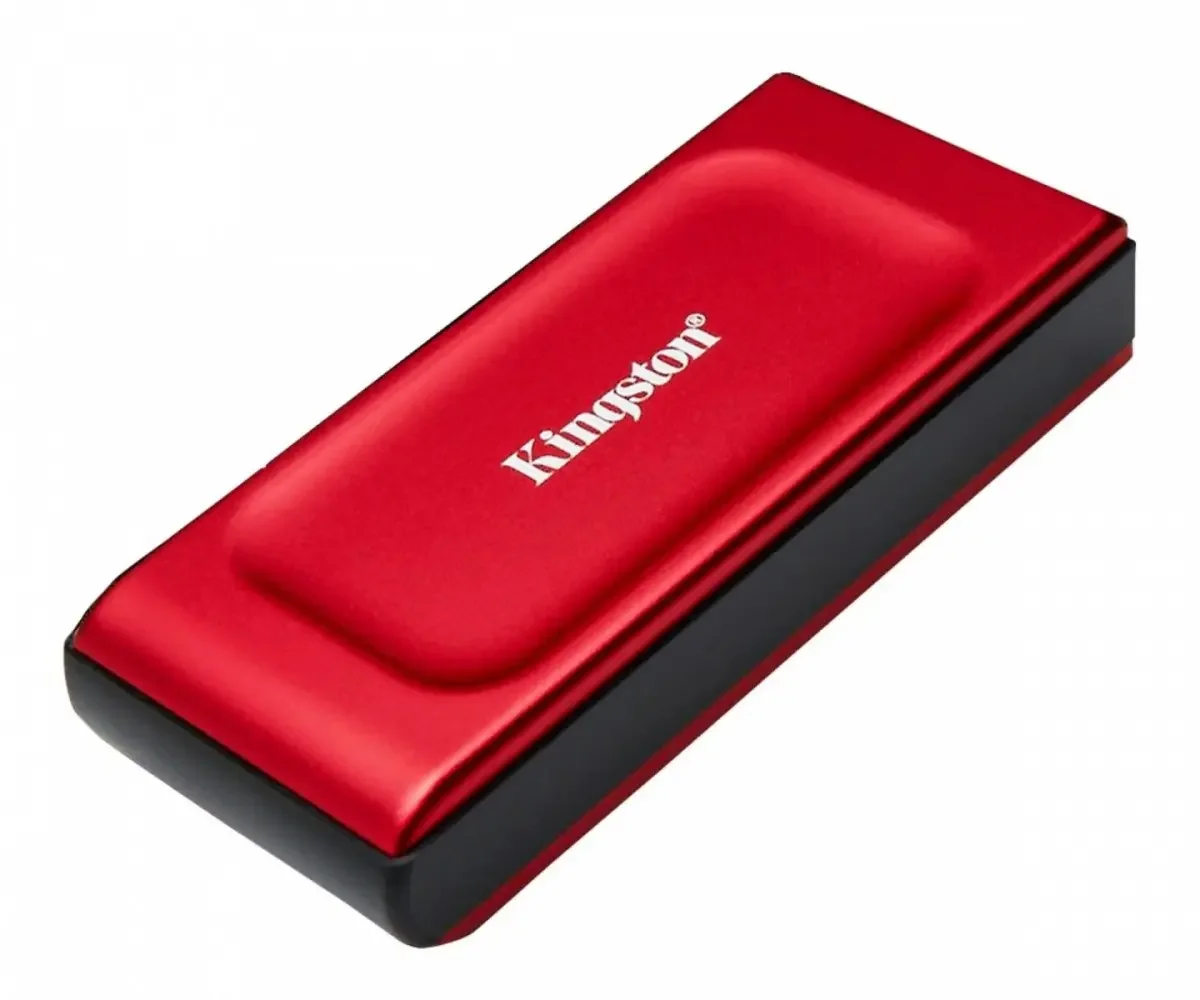
Yes. A compatible USB-C flash drive is useful for large files and works directly with iPhone 15 and newer USB-C models. Copy the files from Android to the drive, connect it to the iPhone, and manage the content in the Files app.
Do the phones need to stay close together?
Yes, for a wireless Move to iOS transfer. The iPhone creates a temporary direct Wi-Fi network rather than using your home router, so keep both devices nearby until the transfer is complete.
What if Move to iOS is interrupted?
Restart the migration. Keep both phones powered, close together, and connected by a stable direct Wi-Fi or cable connection. If the iPhone was left with incomplete content, erase it before repeating the setup transfer.
Can I add more than one Google Account?
Yes. Add each account separately and choose which mail, contacts, calendars, and notes it should sync.
Will the transfer erase my Android phone?
No. The process copies data. Do not erase or trade in the Android phone until you have checked that everything important is available on the iPhone.