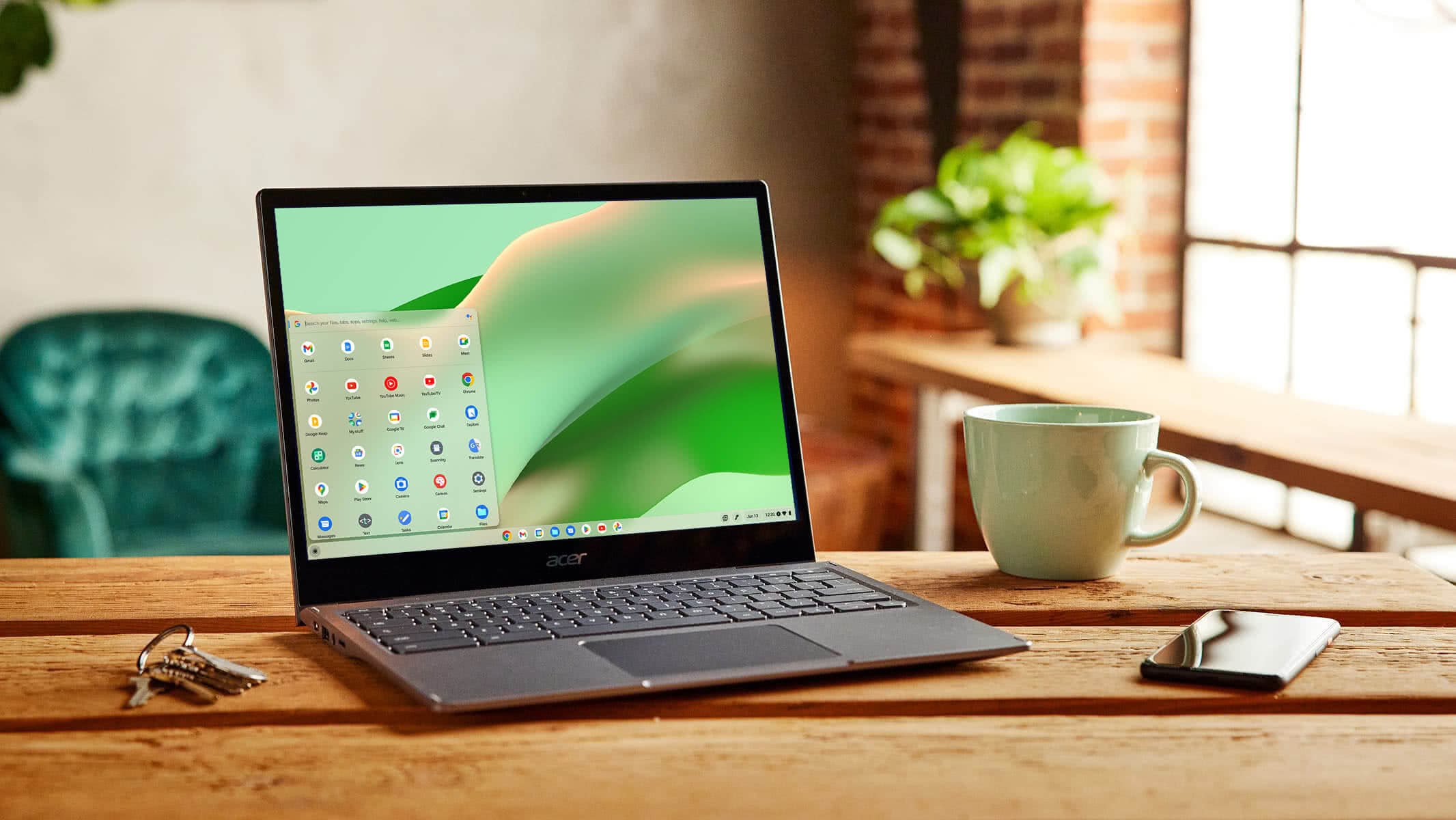
ChromeOS is Google’s operating system for Chromebooks. It is fast, secure and built around web apps, Android apps and selected Linux software. ChromeOS Flex is a separate, free edition for compatible PCs and Macs, but it does not provide the full Chromebook feature set.
What is ChromeOS?
ChromeOS is the operating system Google built for Chromebooks. It’s based on Linux and built around the Chrome browser, but it’s a complete operating system with a desktop, file manager, settings and offline features. Chrome, on the other hand, is just the browser, which you can also use on Windows, macOS, Linux, Android and iPhone.
Most of what you do on a Chromebook happens in web apps, but current models can also run Android apps from Google Play and Linux apps for developers. Exactly which features you get depends on the model and, on school or work laptops, on what the administrator allows.
What can you do on a Chromebook?
Everyday work: Use Google Workspace, Microsoft 365 for the web, Zoom, Slack, Canva and other browser-based tools.
Offline work: Edit Docs, Sheets and Slides files you’ve made available offline, watch downloaded media and use offline-capable apps. Set this up before you need it.
Android apps: Most current Chromebooks can install apps from Google Play, although some phone apps don’t work well with a keyboard and a big screen.
Linux apps: Developers can run code editors, command-line tools and selected desktop apps in a built-in Linux environment.
Creative work: Chromebook Plus models handle web-based photo and video editing and AI tools well, but professional software like full Adobe apps or CAD still needs Windows or macOS.
Chromebook vs Chromebook Plus
Chromebooks range from cheap school laptops to premium 2-in-1s. Chromebook Plus is Google’s label for higher-spec models, with at least 8 GB of RAM, 128 GB of storage and a faster processor, plus extra Gemini AI and video-call features. If you mostly browse, write and stream, a regular model like the HP Chromebook 15 is enough.
For smoother multitasking and the newest AI features, a Chromebook Plus such as the Lenovo Chromebook Plus 2-in-1 is a better long-term buy, and the Lenovo Chromebook Plus 14 with a MediaTek Kompanio Ultra chip is one of the fastest Chromebooks you can get. Whichever you choose, check the screen, ports and update date, not just the badge.
If you mainly watch videos and browse on the sofa, you might not need a laptop at all. Our ranking of the best tablets shows which models are worth buying.
Updates, security and Googlebook OS
Chromebooks update automatically in the background and install updates when you restart. Every time a Chromebook starts, verified boot checks that the system hasn’t been tampered with, apps run in sandboxes and your data is encrypted. That makes ChromeOS one of the most secure and low-maintenance systems you can use, although you still need a strong password and should watch out for phishing and suspicious browser extensions.
Google promises up to 10 years of updates for newer Chromebooks, but the exact end date depends on the model. You can check it in Settings, About ChromeOS, Additional details, then Update schedule, which matters most when you buy a used or discounted model. Some older models need you to opt into extended updates, which removes Android apps and the Play Store.
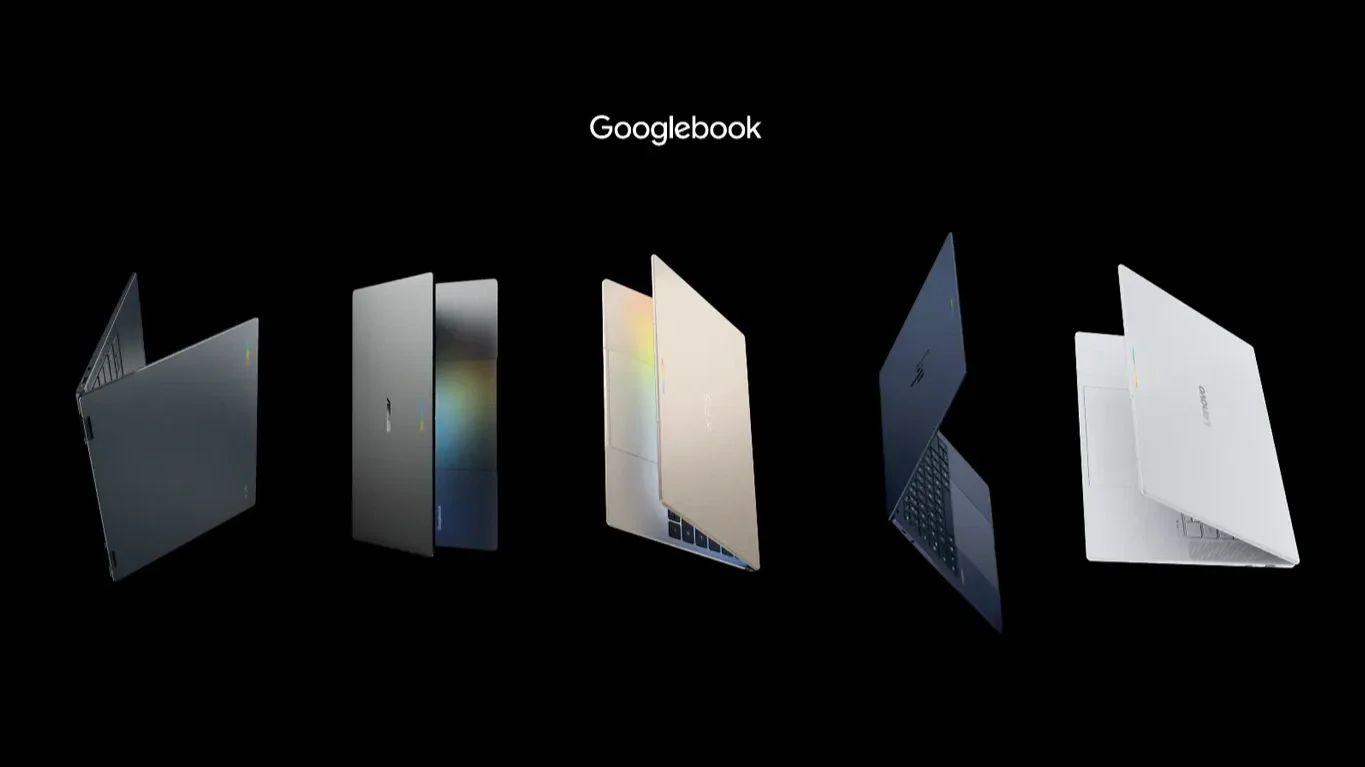
In October 2026, Google launched Googlebook OS, an Android-based desktop system previously known as Aluminium OS, on its new Googlebook laptops. It will gradually replace ChromeOS on new consumer laptops.
Google has said ChromeOS will keep getting updates until 2034, so some recent models will get fewer than ten years, and that many Chromebooks will be able to upgrade to Googlebook OS. If you’re buying now, check whether Google lists your model as eligible.
Can you play games on a Chromebook?
Yes, but don’t expect a gaming PC. Your options are browser games, Android games from Google Play and cloud gaming services like NVIDIA GeForce NOW and Xbox Cloud Gaming. Google also ended its Steam for Chromebook beta, so a Chromebook isn’t the right choice if you want to play a big library of PC games locally.
For cloud gaming, a stable connection matters more than raw speed. Use Ethernet or strong 5 GHz or 6 GHz Wi-Fi, and check that the service is available in your country. Android game support also varies by model, so check the Play Store listing before you rely on a specific title.
ChromeOS Flex: turn an old PC into a Chromebook
ChromeOS Flex is a free version of ChromeOS that you can install on many older Windows PCs and Macs. It’s a great way to give an old laptop a second life, but it isn’t quite the same as a real Chromebook:
| Feature | ChromeOS on a Chromebook | ChromeOS Flex |
|---|---|---|
| Designed for | Certified Chromebooks and related hardware | Compatible Windows, Mac and Linux computers |
| Google Play / Android apps | Available on eligible models | Not supported for normal consumer use |
| Linux environment | Available on supported devices | Availability and hardware support may vary |
| Verified boot | Full Chromebook implementation | Supported differently depending on hardware |
| Firmware and hardware integration | Designed and certified as one platform | Depends on the exact computer model |
| Use case | New primary computer | Reusing or centrally managing compatible older machines |
Google only guarantees that Flex works properly on certified models, and each one has its own support end date, so check Google’s certified models list for your exact model first. Your computer needs a 64-bit Intel or AMD processor, at least 4 GB of RAM, 16 GB of storage and the ability to boot from USB. Computers from 2012 or earlier usually aren’t good candidates.
You’ll also need a USB drive with at least 16 GB, such as the SanDisk Ultra Flair 32GB. Creating the installer erases it, so copy off anything you want to keep. Then follow these steps:
Back up everything on the computer, because installing Flex erases its internal drive.
In Chrome, use the Chromebook Recovery Utility extension to create a ChromeOS Flex installer on the USB drive.
Restart the computer, open its boot menu and choose the USB drive.
Select “Try it first” and test Wi-Fi, sound, the camera, the trackpad, an external display and sleep mode.
If everything works, choose “Install ChromeOS Flex”, then sign in and install any updates.
If Flex doesn’t work well on your computer, a lightweight Linux system such as Linux Mint is a good alternative. Avoid old CloudReady installers and unofficial “lite” versions of Windows such as Tiny11, because they don’t get proper security updates and you can’t be sure where they came from.
Pros and cons of ChromeOS
The biggest strengths of ChromeOS are simplicity and security. Chromebooks start quickly, update themselves, stay fast over time and are very hard to infect with malware. They also work especially well with Google services like Gmail, Drive and Photos and with Android phones, and schools and businesses can manage them easily.
Most downsides come from relying on the web. Many specialist apps, such as full Adobe software, CAD tools and audio production apps, aren’t available. Some printers, scanners and other accessories don’t work, cheaper models often have little storage, and some Android apps are clearly designed for phones. School and work Chromebooks can also be locked down by administrators.
Is ChromeOS right for you?
A Chromebook is a great choice for students, families, shared computers and anyone who mostly works in a browser with Google Workspace or Microsoft 365. Go for a Chromebook Plus if you want smoother multitasking, more storage and the newest AI features, or try ChromeOS Flex if you have a compatible older computer that you mainly use for browsing.
It’s the wrong choice if you depend on specific Windows or Mac software, want to play demanding PC games locally or need full control over your system. In that case, a Windows laptop or a MacBook is the safer buy, and our MacBook Air vs MacBook Pro comparison can help you choose the right Mac.
Before you buy, make a quick list of the apps and accessories you rely on and check that each one works on ChromeOS. Then check the model’s update date. If everything works, you’ll get a simple, secure laptop that just gets out of your way.
