
Changing your Wi-Fi password is one of the easiest ways to keep strangers, old devices and nosy neighbors off your network. But your router actually has two passwords: the Wi-Fi password your devices use to connect, and the admin password that protects the router's settings. In this guide, I'll show you how to change both, which security mode to choose, how to create a strong password and what to do if something goes wrong.
I've run into this problem myself many times. You just want to change the Wi-Fi password or rename the network, and the router asks for an admin login you've never seen. The password on the sticker doesn't work, and the guide you find assumes you're already signed in. That's why this guide also covers the most common default router logins and what to do when none of them work.
Why change your router passwords?
The Wi-Fi password lets devices join your network. It's worth changing if you've shared it with too many people, moved into a home with an existing router, suspect someone is using your connection or never changed the one on the sticker. The admin password protects the router's settings, where someone could change your DNS, open ports or lock you out. Use different passwords for the two, and never reuse a password from another account.
Before you start, take a photo of the router's sticker, which usually shows the default network name, Wi-Fi password and admin login. If you can, make the changes from a laptop connected with an Ethernet cable, because changing the Wi-Fi password disconnects every wireless device, including the one you're using.
How to sign in to your router's settings
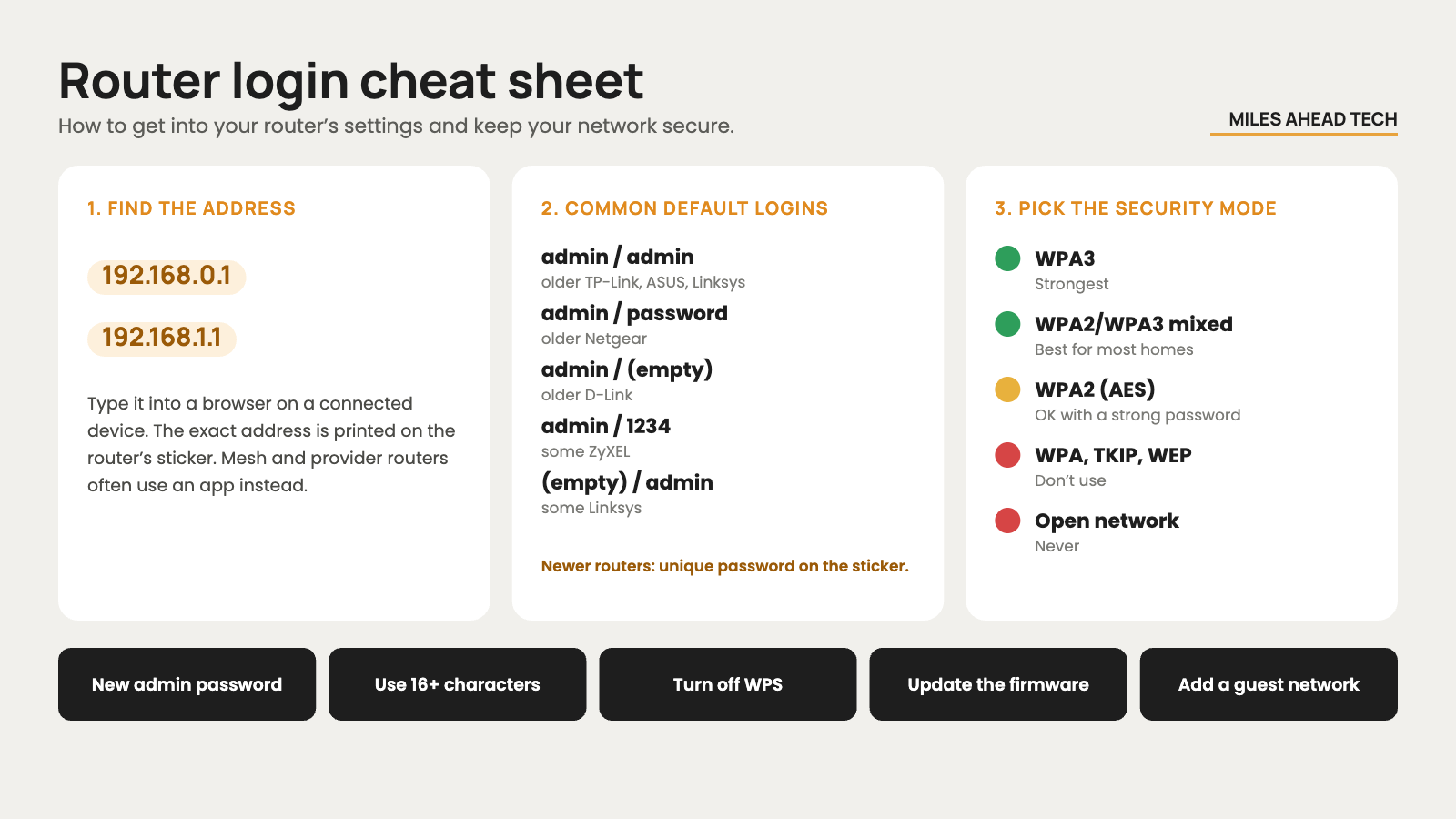
Many modern routers and mesh systems are managed through an app, such as Eero, Google Home, TP-Link Deco or your internet provider's app. If yours has one, that's usually the easiest way. Otherwise, open a browser on a connected device and type the router's address, often 192.168.0.1 or 192.168.1.1. The exact address is usually printed on the sticker.
To find it on your computer, on Windows open Settings, then Network & internet, select your connection and open its properties to see the default gateway. On a Mac, go to System Settings, then Wi-Fi, click Details next to your network and check the Router entry under TCP/IP. Then sign in with the admin username and password.
Don't know the admin login? First, check the sticker on the router. Most routers made in the last few years have a unique admin password printed there, or ask you to create one during the first setup. Older routers often use one of these common defaults:
Username admin, password admin, used by many older TP-Link, ASUS and Linksys routers
Username admin, password password, common on older Netgear routers
Username admin, password left empty, used by many older D-Link routers
Username admin, password 1234, found on some ZyXEL and other routers
No username, password admin, used on some Linksys models
If your internet provider supplied the router, the login is usually on its sticker or in the provider's app or account. If none of these work, someone has already changed the password, and the only way in is a factory reset, which is explained in the troubleshooting section below.
How to change the router admin password
Sign in to the router's app or web page.
Open the section called Administration, System, Management or Security.
Choose the option to change the admin or login password.
Enter the current password, then a new, unique password, and save.
Store it in a password manager, since you'll need it next time.
While you're signed in, it's worth checking a few other settings:
Install firmware updates or turn on automatic updates.
Turn off WPS, which is a weak point on many routers, and UPnP if you don't need it.
Turn off remote management from the internet unless you really need it.
Review connected devices and remove anything you don't recognize.
Set up a guest network for visitors and smart-home gadgets.
If you keep files on a NAS at home, a secure router matters even more.
How to change the Wi-Fi password
In the router's app or web page, open the Wireless, Wi-Fi or WLAN settings.
Find the field called Password, Passphrase, Network key or Pre-shared key.
Enter a new password. If your router has separate 2.4 GHz, 5 GHz and 6 GHz networks, change it for each one.
Check the security mode, as explained in the next section.
Save the changes. Your wireless devices will disconnect and need the new password.
This is also a good moment to rename the network. Avoid using your name, address or router model in it.
Reconnecting your devices: phones and laptops will ask for the new password the next time they connect. If one keeps failing, choose Forget this network and connect again. Smart plugs, bulbs and cameras often need to be set up again in their apps.
Routers from your internet provider and mesh systems: with a provider's router, you may need to use the provider's app or account instead of the router's web page. With a mesh system, you change the password once in the app and it updates every unit. If you're thinking about upgrading, a Wi-Fi 7 mesh system like the TP-Link Deco BE63 supports WPA3 and is easy to manage from your phone.
Which security mode and password should you use?
The security mode decides how the connection is protected. WPA2/WPA3 mixed mode is the best choice for most homes. Here's a quick overview:
| Security mode | How safe is it? | Recommendation |
|---|---|---|
| WPA3-Personal (SAE) | The strongest option for home networks | Use it if all your devices support it |
| WPA2/WPA3 mixed mode | Strong, with support for older devices | The best choice for most homes |
| WPA2-Personal (AES) | Still acceptable with a strong password | Use only if your router or devices don't support WPA3 |
| WPA, WPA2-TKIP or WEP | Outdated and easy to break | Don't use them |
| Open network | No protection | Never use it for your home network |
For the password itself, length matters more than complexity. A passphrase of four or five random words, like "maple-orbit-cactus-drum-lantern", is much harder to crack than a short password with symbols, and easier to type on a TV remote. Aim for at least 16 characters, and avoid names, addresses, birthdays and anything printed on the router. If guests visit often, give them a guest network instead of your main password.
How to find a saved Wi-Fi password
Windows 11: Settings, then Network & internet, then Wi-Fi, then Manage known networks. Select the network and click View next to the Wi-Fi security key.
Mac: System Settings, then Wi-Fi. Click the three dots next to the network and choose Copy Password, or open the Passwords app.
iPhone and iPad: Settings, then Wi-Fi. Tap the info button next to your network and tap Password, or open the Passwords app.
Android: Settings, then Network & internet or Connections, then Wi-Fi. Tap your network and choose Share to see a QR code, usually with the password below it.
Troubleshooting
The settings page won't load: make sure you're connected to that router, check the address on its sticker and try another browser.
You forgot the admin password: reset the router to factory settings by holding the reset button for 10 to 30 seconds. This erases all settings, so you'll need to set up the network again.
Older devices won't connect after switching to WPA3: switch to WPA2/WPA3 mixed mode.
A device rejects the new password: forget the network on that device and connect again.
The internet stops working: restart the router and check you didn't change other settings by accident.
Final thoughts
Changing your router passwords takes about ten minutes and makes a real difference to your home network's security. Change both the Wi-Fi and admin passwords, use WPA3 or mixed mode, pick a long passphrase and keep the firmware updated. Then reconnect your devices and enjoy knowing exactly who's on your network.
