What Is a NAS? How to Choose the Right Home NAS Server
A NAS can give you your own private cloud at home. Instead of keeping files on Google Drive, OneDrive, or a portable hard drive connected to one computer, a NAS connects directly to your home network and makes its storage available to multiple devices at once.
You can use it to back up the photos on your phone automatically, keep files from several computers in one place, stream movies to your TV or open your documents while you're away from home. NAS devices range from simple single-drive boxes to small home servers powerful enough to run Plex, virtual machines and security camera systems.
So what exactly is a NAS, do you actually need one, and what should you look for before buying?
What is a NAS and how does it work
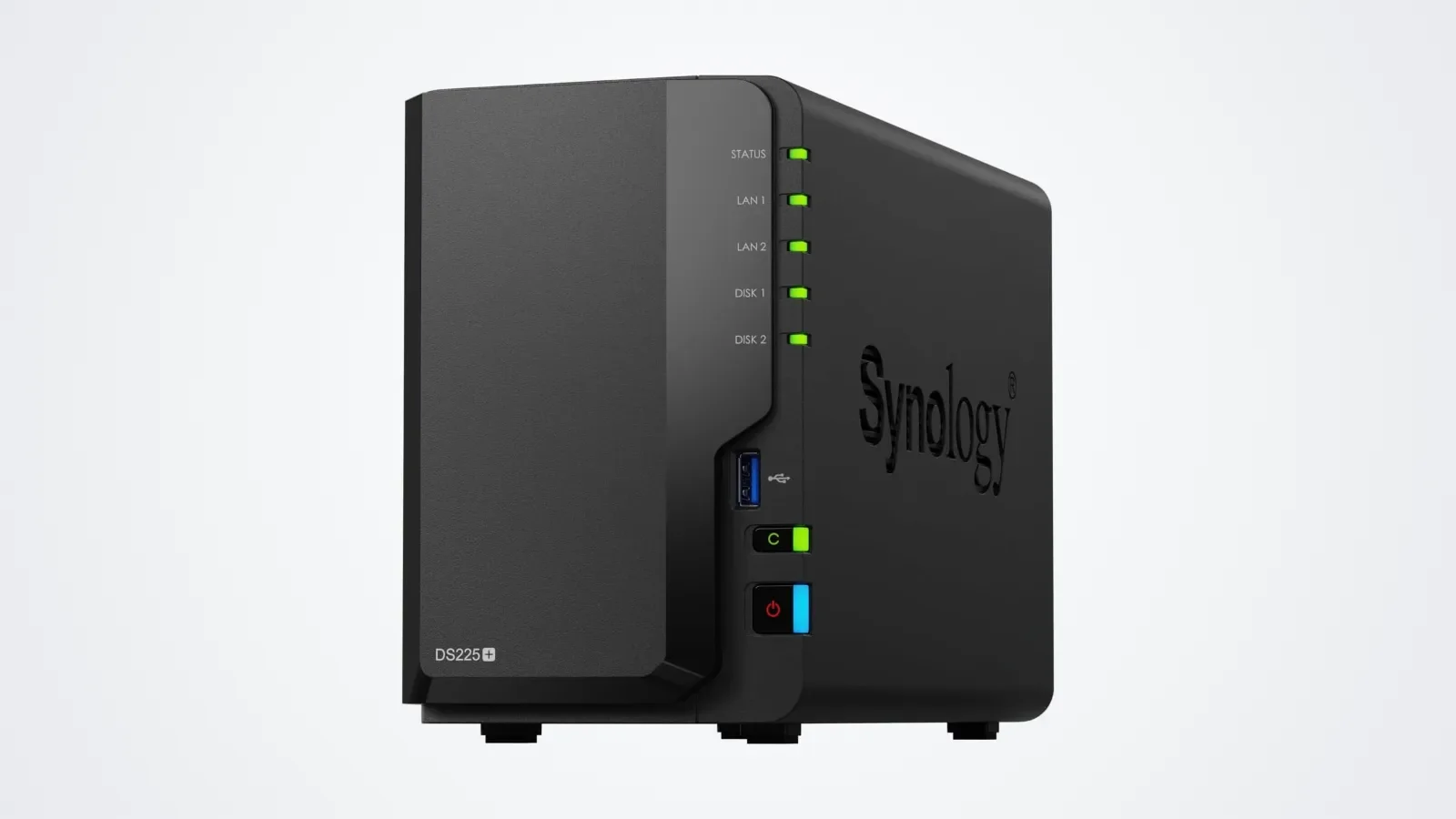
NAS stands for Network Attached Storage. The easiest way to understand it is to compare it with a regular external hard drive. An external HDD or SSD plugs into one computer over USB, and only that computer can use it. A NAS connects to your router or home network, usually with an Ethernet cable, so every authorized device in the house can reach it: desktops, laptops, phones, tablets, smart TVs and media players.
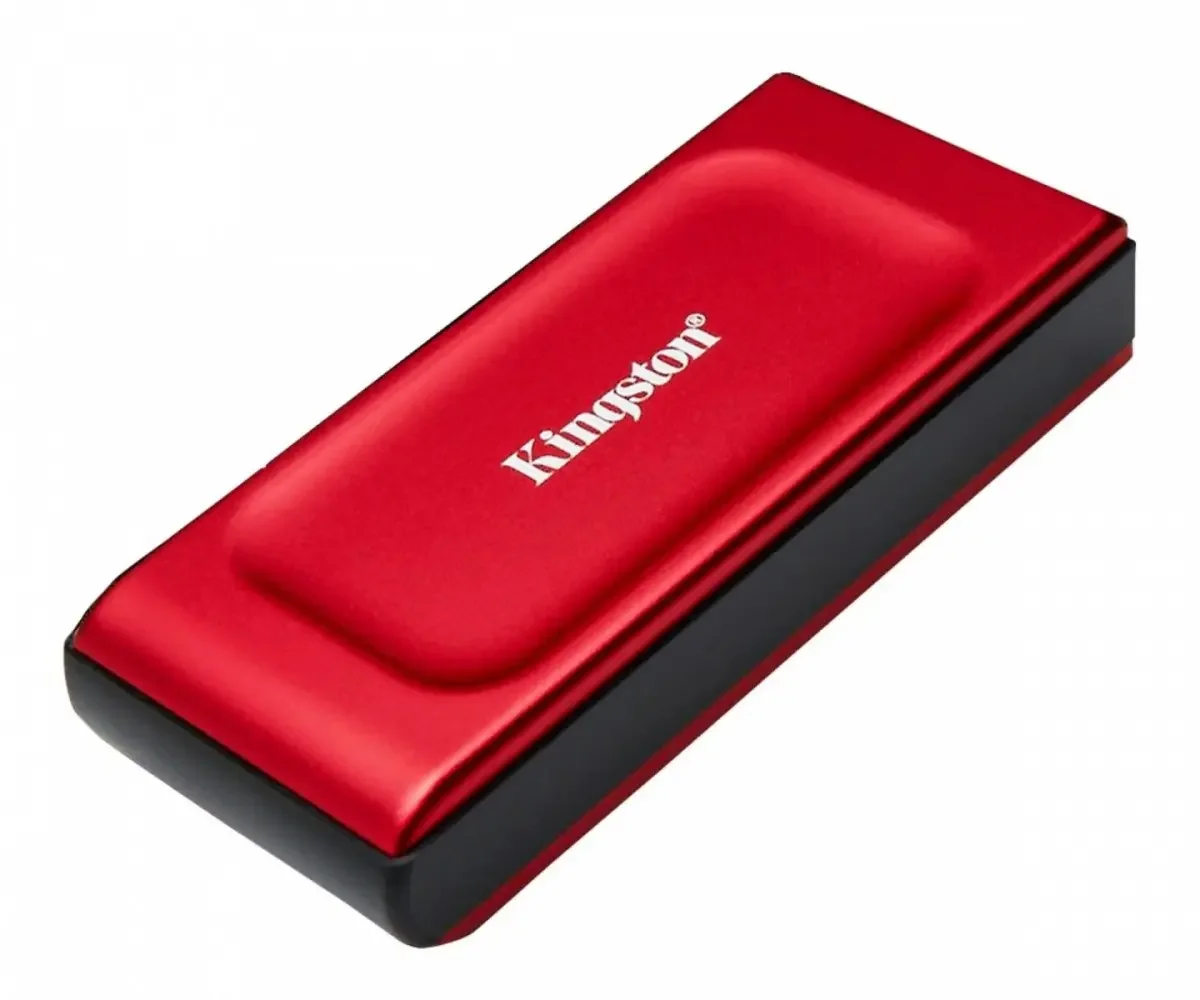
That's possible because a NAS is really a small computer. It has its own processor, memory, operating system and network connection, plus the drives that hold your files. It's built to stay on around the clock, so your files are there whenever another device needs them, and you don't have to leave your main computer running. If you only need fast storage for one computer, a portable drive may be enough, and our ranking of the best external SSDs of 2026 compares the top options.
What can you use a NAS for?
A home NAS can do several jobs at once. The most common ones are:
backing up photos from your phone automatically;
backing up Windows PCs and Macs;
keeping a shared family photo library;
storing documents you can open from any computer in the house;
streaming movies and music to your TV, for example with Plex;
recording footage from security cameras.
For many people, the biggest attraction is that it feels like having your own Google Drive or iCloud, except the hardware is sitting on a shelf in your home.
Can you access a NAS outside your home?
Usually, yes. Synology, QNAP, UGREEN and other manufacturers offer their own apps and secure remote-access tools, so you can save a document on your home computer and open it on your phone later while traveling. The exact setup depends on the brand.
At home, you can also map the NAS as a network drive on Windows or macOS. It then shows up next to your regular drives and folders, and using it feels much like using the storage inside your computer.
NAS vs. cloud storage – which is better
A NAS and services such as Google Drive, OneDrive, Dropbox or iCloud solve many of the same problems, just in very different ways. Cloud storage is simpler: you create an account, pick a plan, install an app and start uploading. A NAS costs more up front and takes some setup, but it gives you far more control over how much storage you have and where your files physically live.
| Feature | Home NAS | Cloud storage |
|---|---|---|
| Cost | Higher upfront cost for the NAS and drives | Recurring monthly or annual subscription |
| Data control | Files are stored on hardware you own | Files are stored on the provider's infrastructure |
| Storage capacity | Depends on installed drives and can usually be expanded | Limited by the storage plan you purchase |
| Local transfer speed | Can be very fast over a wired home network | Depends heavily on your internet connection |
| Setup | Requires hardware installation and configuration | Usually very simple |
| Maintenance | You manage drives, updates and backups | The provider manages the infrastructure |
| Best for | Large libraries, multiple devices and users who want more control | Smaller libraries and users who prioritize simplicity |
Cloud storage is better for simplicity
If you only need a modest amount of space, commercial cloud services are hard to beat. There's no hardware to buy, and the provider deals with servers, failing drives, software updates and everything else behind the scenes. You simply pay for the storage you use. For someone with a folder of documents and a moderate photo library, that's often the easiest answer.
NAS is better for large libraries and control
A NAS starts to make more sense once your storage needs reach several terabytes. Instead of paying for ever-larger cloud plans, you install bigger hard drives in your own box. The initial investment is much higher, but there's usually no mandatory monthly fee for the storage itself.
Local transfers are also much faster, because files don't have to travel over the internet. On a fast wired home network, moving a 50GB folder to a NAS can take a fraction of the time it would take to upload it to a cloud service and download it again.
Then there's privacy. With a NAS, the main copy of your files stays on hardware you physically control. That doesn't automatically make it more secure than Google or Microsoft, because you still need strong passwords, regular updates, sensible remote-access settings and backups. But you do get to decide where your data is stored.
How to choose a NAS for home
Not every NAS is equally capable. A basic model can be perfectly fine for documents and automatic phone backups, yet struggle when you ask it to stream high-resolution video, run several apps or serve multiple users at the same time. Before you buy, it's worth looking at a few key specifications.
How many drive bays do you need
One of the first specs you'll notice is the number of drive bays. A bay is simply a slot for a hard drive or SSD. Home models usually come with one, two or four bays, while larger systems offer considerably more.
1-bay NAS
A one-bay NAS holds a single drive. It's inexpensive and works well for documents, basic media storage, secondary backups and personal file access. The problem is obvious, though: if that drive fails and the NAS holds the only copy of your data, your files may be gone. That's why I wouldn't recommend a one-bay NAS as the only home for important files.
2-bay NAS
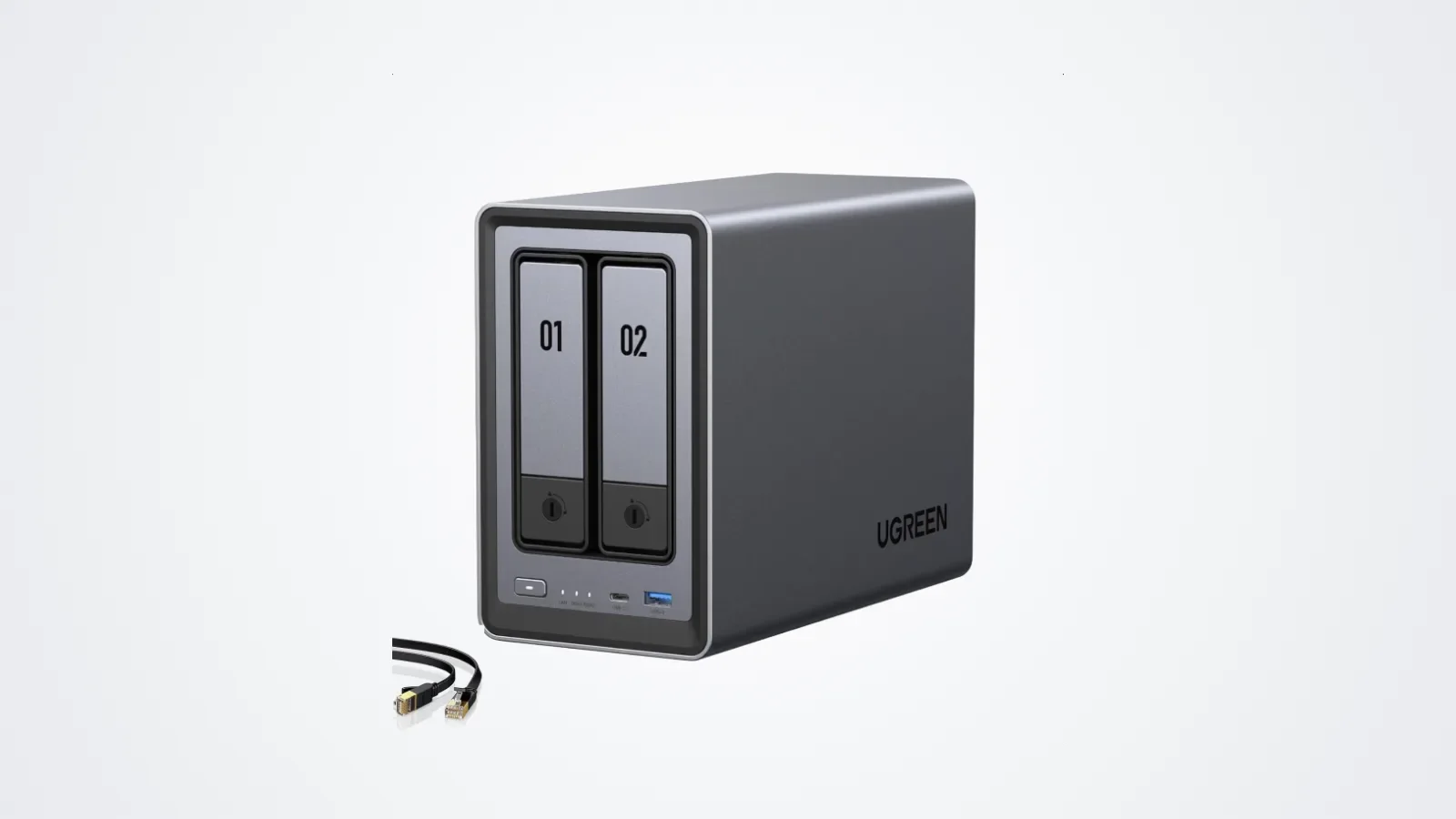
For most home users, a two-bay NAS is the sweet spot. With two drives, you can set the system up so one drive mirrors the other. In a common RAID 1 configuration, the same data is written to both drives, so if one fails, the other still has your files. You replace the failed drive, the NAS rebuilds the mirror, and you carry on. Popular models in this class include the Synology DS225+ and the UGREEN NASync DXP2800.
There's an important caveat: RAID is not a backup. It protects you against certain hardware failures, but not against accidental deletion, malware and ransomware, file corruption, theft, fire or a power surge that damages the whole NAS. Important files should still exist somewhere else.
4-bay NAS
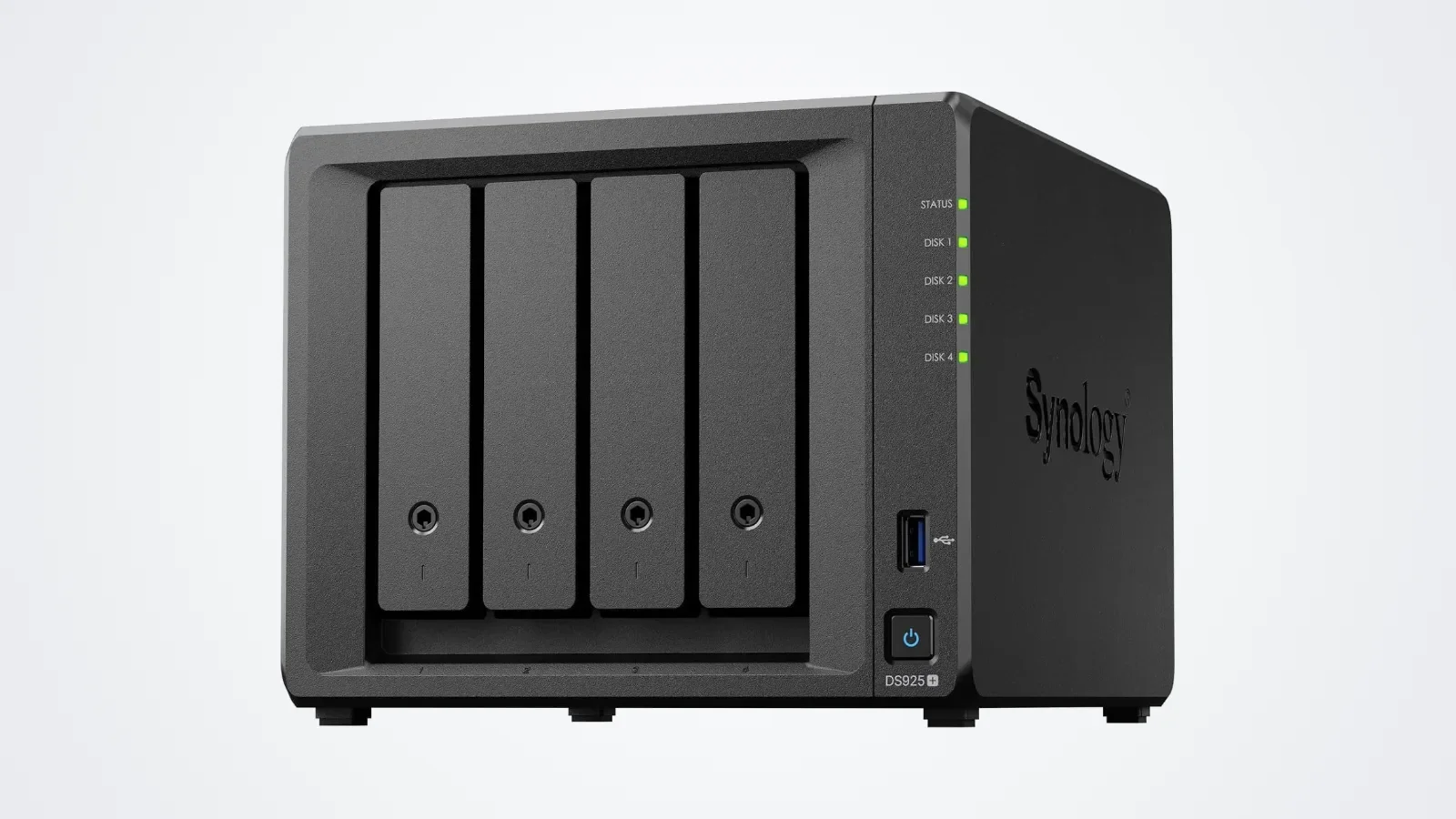
Four-bay systems give you much more flexibility. They make sense if you need many terabytes of storage, expect your library to keep growing, work with large video projects or have several people using the server at once. With four drives, you can also use more advanced RAID setups that strike a better balance between usable capacity and protection against drive failure. The Synology DS925+ and UGREEN NASync DXP4800 Plus are good examples.
For a typical family, though, a good two-bay NAS is often enough.
Processor and RAM
A NAS isn't just a box full of drives. Its processor and memory decide what it can actually do with your files.
Basic NAS
If you mainly want to back up photos, store documents, sync folders and reach your files remotely, you don't need a particularly powerful processor. Entry-level models with modest CPUs and around 1GB of RAM handle basic file storage just fine.
NAS for Plex and media
Things get more demanding if you plan to use the NAS as a media server. Plex, for example, may need to transcode a video when its original format isn't supported by the device you're watching on, and transcoding 4K video takes far more processing power than copying a PDF. If streaming matters to you, look for a stronger processor with hardware transcoding support.
If you'll mostly watch on a TV, it also helps to know which smart TV platform it runs, since that decides which apps, including Plex, you can install. Our article explaining the difference between Android TV and Google TV covers that.
NAS for advanced applications
More powerful models can run Docker containers, databases, virtual machines, development tools, surveillance software and several server apps at once. For workloads like these, I'd look for at least 2–4GB of RAM, ideally upgradeable, and a more capable processor. At that point, you're really buying a small home server rather than a network hard drive.
NAS software and apps matter
The specifications on the box are only half the story. The operating system and apps can make an enormous difference to how pleasant a NAS is to live with.
Most modern NAS systems have a browser-based interface that looks surprisingly like a desktop operating system. From there, you manage files and user accounts, set up backups, install apps, check drive health and control network and remote-access settings.
The major brands also offer mobile apps that upload photos from your phone automatically, giving you an alternative to Google Photos or iCloud Photos. Depending on the platform, you'll also find apps for media libraries, photo organization, security cameras, file syncing, password management and shared documents.
That's why I wouldn't choose a NAS purely on CPU speed and the number of drive bays. You're also buying into the manufacturer's software ecosystem, and a slightly slower NAS with software you enjoy using can be a far better purchase than a more powerful box that makes every basic task complicated.
What drives should you use in a NAS?
NAS enclosures are often sold without drives, so you'll usually need to buy storage separately. For a system that runs around the clock, it's worth choosing hard drives designed specifically for NAS use, such as WD Red or Seagate IronWolf. These drives are built for continuous workloads and multi-drive enclosures, including the vibration created when several hard drives spin next to each other.
Before you buy, check the NAS maker's compatibility list. Synology, for example, initially limited full support on its 2025 Plus models to its own drives, then relaxed that policy with DSM 7.3.
HDD or SSD in a NAS?
For large home storage, HDDs still make the most sense, because they give you far more capacity for the money. SSDs are silent, faster and have no moving parts, but filling a multi-bay NAS with several large SSDs gets very expensive. For photo archives, backups and media libraries, traditional NAS hard drives are still the sensible choice.
Can you turn an old PC into a NAS
Yes. Instead of buying a dedicated NAS, you can turn an old desktop into a home server with software designed for network storage. This approach is extremely flexible, and if you already own the hardware, it can cost very little. There are a few catches, though.
More complicated setup
A DIY server usually takes more technical knowledge. You may have to configure the operating system, storage arrays, network settings, remote access, backups, permissions and updates yourself. For enthusiasts, that's part of the fun. For everyone else, it can be the exact opposite.
Higher power consumption
An old desktop PC can use considerably more electricity than a compact NAS designed to run 24/7, and that adds up when the machine stays on every day of the year.
Noise and size
Old PCs also tend to be bigger, hotter and noisier. A purpose-built NAS is compact and designed to sit quietly next to your router or in a cabinet.
When does a DIY NAS make sense?
I'd consider an old PC if you already have suitable hardware, you're comfortable managing a server and you want complete freedom over the software, or if you simply enjoy building and maintaining your own tech. If you just want your phone photos backed up automatically, a dedicated NAS is far easier.
Who should buy a NAS
Not every household needs a NAS. For some people, though, it becomes one of those devices that quietly solves several problems at once.
A NAS makes sense if you:
have several computers and smartphones;
keep a large photo or video library;
regularly run out of storage on your devices;
want automatic backups for the whole household;
want your own private cloud or home media server;
work with large creative files;
don't want to pay indefinitely for large cloud plans.
Photographers and video creators are obvious candidates. Modern cameras produce enormous files, and a multi-terabyte NAS gives you one central place for projects, archives and backups. It's also a practical fix if you work on a laptop with a small internal SSD, which is worth keeping in mind if you're reading our guide to choosing between the MacBook Air and MacBook Pro and wondering how much storage to pay for.
Families benefit too. Instead of everyone's photos being scattered across four phones, three laptops and several cloud accounts, a NAS can become one shared home archive.
Who probably doesn't need a NAS?
If you mostly use a web browser, streaming services and cloud documents, and your photo library is fairly small, a NAS may only add complexity. If Google Drive's free storage or a small iCloud plan already covers everything, spending hundreds of dollars on a server and drives probably won't improve your life. Technology doesn't automatically get better when it comes with another admin panel, and for basic storage needs, cloud services are still easier.
Is a NAS worth it
A NAS is worth considering once your digital library has become too large, or too important, to live on individual devices. The biggest benefits are:
Centralized storage: your computers, phones and other devices share one location.
Automatic backups: photos and computer files are backed up without plugging in external drives.
Large capacity: you can build a multi-terabyte system and expand it later.
Private cloud features: you can reach your own files remotely.
No mandatory monthly storage fee: once you've bought the NAS and drives, the storage is yours.
The downsides are just as real. A NAS plus several high-capacity drives isn't cheap, and even user-friendly systems need more attention than Google Drive. You're also responsible for backups. Owning the hardware means protecting it, and a NAS isn't a magical box where files become immortal the moment you copy them over.
NAS buying guide – the bottom line
For most households, I'd start with a two-bay model. It's flexible enough for photo and computer backups, shared files, a media library and basic drive redundancy. Look at the operating system just as carefully as the hardware. If you mainly want file storage and photo backup, you don't need a hugely powerful processor, but if you're planning on Plex transcoding, Docker or virtual machines, it's worth paying more for CPU performance and upgradeable RAM.
Whatever you choose, remember the most important rule: a NAS should be part of your backup strategy, not the entire backup strategy. Keep truly important files somewhere else too, for example on an external drive or a cloud service. After all, two drives inside the same box are still inside the same box.
FAQ
Does a NAS need to stay on all the time
If you want automatic backups, remote access and your private cloud to remain available at all times, then yes — a NAS is normally left powered on. These devices are designed for continuous operation and generally consume much less power than a conventional desktop PC. Many models can also put their hard drives into sleep or standby modes when they're not being used.
What hard drives should I buy for a NAS
For a NAS that operates continuously, it's usually best to use drives designed specifically for NAS systems. Popular product families include WD Red and Seagate IronWolf. These drives are optimized for long operating periods and multi-drive environments. Before buying, also check the NAS manufacturer's compatibility list.
Does a NAS work without internet
Yes. A NAS can continue operating inside your local home network even if your internet connection goes down. Computers, phones and TVs connected to the same network can still access locally stored files.
Internet access is primarily required for things such as:
accessing the NAS while away from home;
downloading software updates;
using cloud-connected services.
So if your ISP goes down in the middle of a movie stored on your NAS, the movie doesn't have to go down with it.
Is RAID the same as a backup
No. RAID can protect against the failure of an individual drive, depending on how the storage array is configured. It doesn't protect you from every type of data loss. For important files, keep another independent copy on an external drive, another NAS, or a cloud service.
Can a NAS automatically back up photos from my phone
Yes. Many NAS manufacturers provide mobile apps that can automatically upload photos and videos from your smartphone to the NAS. This can make a NAS behave similarly to a private version of Google Photos or iCloud Photos.
Can I use a NAS with both Windows and Mac
Yes. Most modern NAS systems support common network protocols that allow Windows and macOS computers to access the same storage. You can also map network folders so they appear directly in File Explorer or Finder.
Can you use a NAS for Plex
Yes, but performance depends heavily on the NAS. Simple direct playback requires relatively little processing power. Real-time transcoding — particularly with high-resolution video — can require a much more capable processor. If Plex is one of your main reasons for buying a NAS, check the hardware's media capabilities before choosing a model.