
Your character starts walking on its own, the camera slowly pans toward the sky, and you haven’t touched a thing. That’s stick drift, one of the most common and most annoying controller problems. Here’s what causes it, which fixes actually work, and when it’s time to replace the stick or the whole controller.
What is stick drift
Stick drift happens when a controller reports movement even though nobody is touching the analog stick. In a game, that usually looks like a character creeping forward, a camera that won’t stay still, or a menu cursor that keeps jumping to the next option.
It can start as a barely visible nudge and get worse over a few weeks, and it can hit any controller with analog sticks, from a PlayStation DualSense to an Xbox Wireless Controller or a Switch Joy-Con.
It matters more in some games than others. A slow drift is easy to ignore in a racing game, but in a shooter it ruins your aim, because the game is constantly correcting for a movement you never made.
Why controllers get stick drift
Most controllers measure stick position with potentiometers, which are small sensors where a contact slides along a resistive track. Each stick has two of them, one for each axis. Because those parts physically rub against each other, the track slowly wears down and the readings stop being accurate. If the sensor no longer reports a true center, the console sees movement that isn’t there.
Wear is the main cause, but it isn’t the only one. Dust, crumbs, skin oils and pet hair can get under the stick and interfere with the sensor, a tired centering spring can stop the stick from returning fully to neutral, and liquid damage can affect the sensor or the circuit board.
Outdated firmware and bad calibration can also produce similar symptoms, and that is good news, because those causes are free to fix. It’s also the reason drift isn’t limited to one brand. If you’re still deciding on a platform, our comparison of Xbox and PlayStation explains the bigger differences between the two.
How to confirm it’s really drift
Before you start cleaning anything, make sure the controller is actually at fault. Open a game with free camera control, let go of both sticks and watch for a few seconds. On a PC, you can get a clearer answer from a free online gamepad tester or the calibration view in Steam, both of which show the raw position of each stick.
Also try the same controller on another console or PC if you can, and try another controller in the same game. If the movement follows the controller, the controller is the problem. If it stays with one game, look at that game’s sensitivity and deadzone settings first.
Start with the simple fixes
These steps take a few minutes and cost nothing, so do them before anything more invasive:
Restart the console or PC and reconnect the controller.
Update the controller firmware. On PS5, look under Settings > Accessories > Controllers. On Xbox, go to Profile & system > Settings > Devices & connections > Accessories. Menu names can change slightly with system updates.
Reset the controller. A DualSense has a small reset hole on the back. Press it with a pin for at least five seconds, then reconnect with a USB cable. Keep in mind that a reset clears saved settings.
Clean around the stick
If the drift remains, cleaning is the next step, and it’s the fix most likely to help when dirt is involved. Turn the controller off first, then follow these steps:
Push the stick to one side and use short bursts of compressed air around its base.
Lightly dampen a cotton swab with isopropyl alcohol, ideally 90% or higher. It should be damp, not dripping.
Run the swab around the base of the stick while rotating the stick in every direction.
Let it dry completely before turning the controller back on.
Don’t open the controller at this stage. Internal cleaning with electronics contact cleaner can work, but it’s easy to damage parts, and opening the shell may affect your warranty.
Adjust the deadzone or recalibrate
A deadzone is the small area around the center of the stick where the game ignores input. Raising it slightly can hide mild drift, and many games offer this option in their controller settings. The DualSense Edge lets you set it in custom profiles, and the free Xbox Accessories app includes calibration and deadzone tools for supported controllers.
Treat this as a workaround rather than a repair. A larger deadzone makes small aiming movements less precise, and if the sensor keeps wearing out, the drift will eventually grow past whatever deadzone you set.
When to repair or replace it
If the sensor itself is worn, cleaning won’t bring it back. Check your warranty first, because a free replacement beats any repair. DualSense controllers come with a one-year warranty from Sony, and Microsoft handles service for Xbox controllers that are still covered, so contact the manufacturer before you take anything apart.
Out of warranty, you have a few options. The DualSense Edge has replaceable stick modules that swap out without any soldering. On a standard DualSense or Xbox controller, replacing the stick module requires desoldering it from the board, so it’s only worth attempting if you have the tools and some experience. A repair shop is the alternative, but compare the quote with the price of a new controller, since the two are often close.
How to avoid stick drift next time
You can’t stop mechanical wear completely, but you can slow it down. Wash your hands before long sessions, keep food away from the controller, store it somewhere dust won’t settle on it, and give the sticks a quick clean every few months.
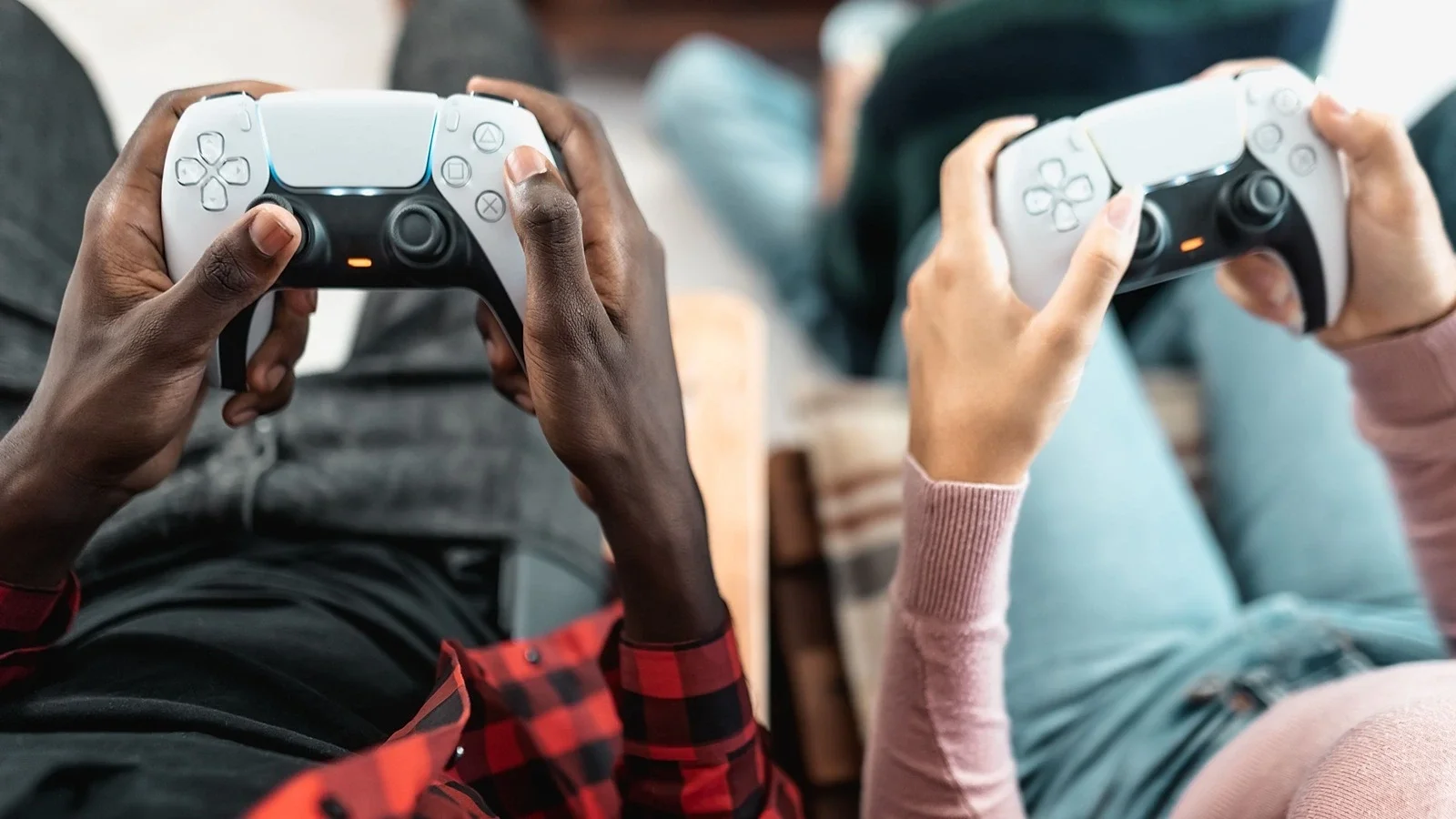
If drift keeps coming back, look at controllers with Hall effect or TMR sticks. They read stick position using magnetic sensing, with no contact rubbing against a track, which removes the main source of wear.
The standard DualSense and Xbox Wireless Controller still don’t use them, so you’ll need to look at third-party models. Make sure any controller you pick officially supports your console, because many of these are designed mainly for PC and Switch.
