
Walk into any electronics store and you'll find HDMI cables from under $10 to over $100, all promising "8K", "4K HDR" or "gold-plated" picture quality. The truth is, a cheap certified cable works exactly as well as an expensive one, as long as it's the right type. In this guide, I'll explain the different HDMI cable categories, what changed with HDMI 2.2, which cable you need for your TV, console or soundbar, and how to avoid paying for marketing.
Quick answer
For most new 4K TVs, game consoles and soundbars, buy a certified Ultra High Speed HDMI cable rated for 48 Gbps, like the UGREEN 8K HDMI 2.1 cable or the Zeskit Maya 8K cable. You only need the newer Ultra96 cable if both of your devices support HDMI 2.2 modes above 48 Gbps, which almost no home equipment does yet.
What does an HDMI cable actually do?
HDMI (High-Definition Multimedia Interface) carries digital video and audio between devices like TVs, monitors, projectors, consoles, computers, streaming players, soundbars and AV receivers. The same connection also handles control features such as HDMI-CEC, which lets one remote control several devices, and ARC or eARC, which sends sound from your TV back to a soundbar or receiver.
Because the signal is digital, a cable can't make colors richer or the image sharper. It either delivers the data reliably or it starts to fail, and when it fails you'll see it clearly: dropouts, flickering, sparkling pixels, sound cutting out or a black screen. That's the key thing to remember when a box promises "enhanced picture quality."
HDMI cable types: categories matter more than version numbers
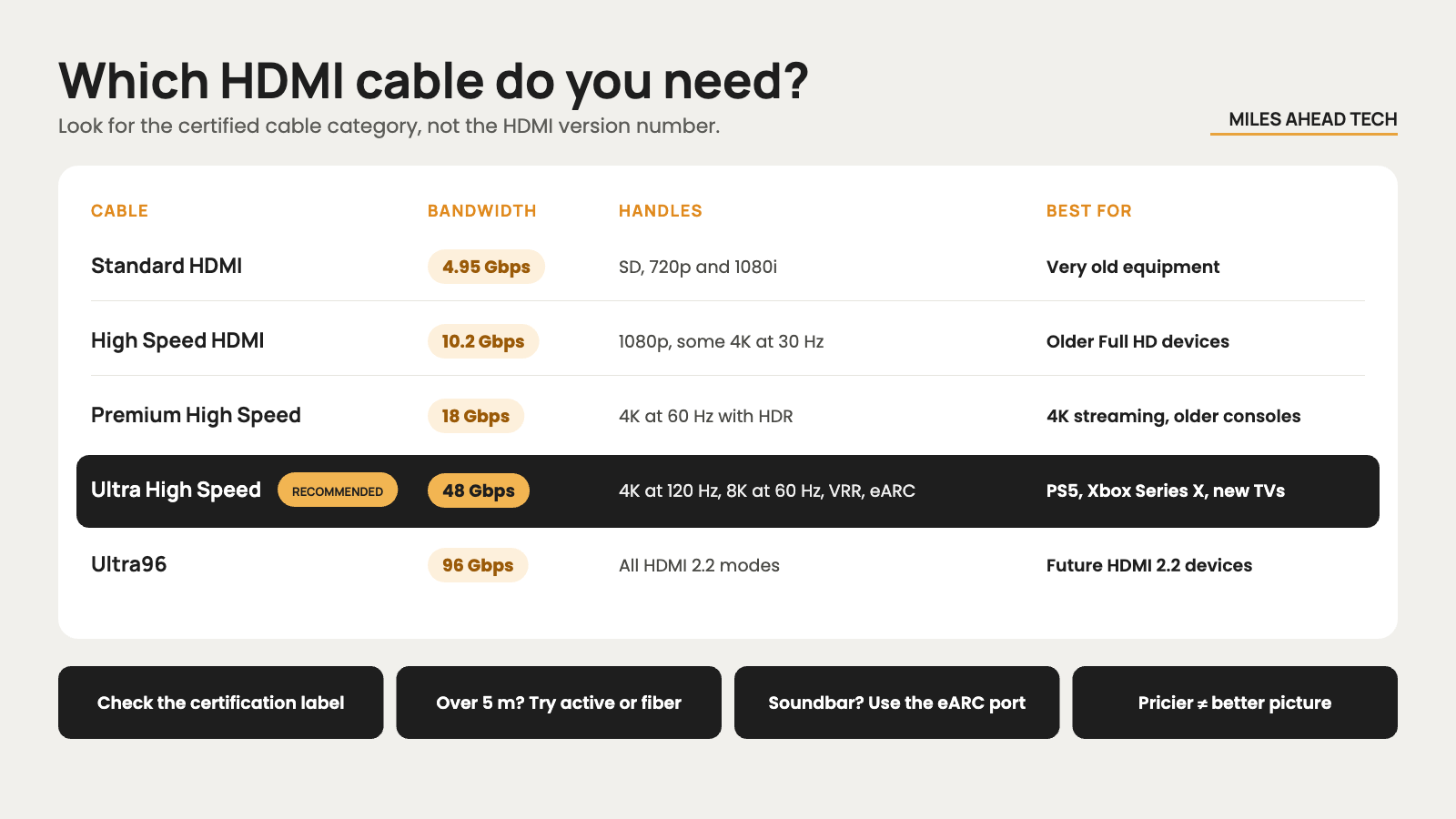
HDMI version numbers like 2.0 or 2.1 describe what devices can do, not how good a cable is. When you shop, look for the official cable category and certification label instead of claims like "HDMI 2.1 cable" or "8K cable." Here's what each category is designed for:
| Cable category | Max bandwidth | What it handles | Best for |
|---|---|---|---|
| Standard HDMI | 4.95 Gbps | SD and 720p/1080i | Very old equipment only |
| High Speed HDMI | 10.2 Gbps | 1080p, 3D, some 4K at 30 Hz | Older Full HD devices |
| Premium High Speed HDMI | 18 Gbps | 4K at 60 Hz, HDR | 4K streaming and older 4K consoles |
| Ultra High Speed HDMI | 48 Gbps | 4K at 120 Hz, 8K at 60 Hz, VRR, eARC | PS5, Xbox Series X, gaming PCs, new TVs |
| Ultra96 HDMI | 96 Gbps | All HDMI 2.2 modes | Future HDMI 2.2 devices marked Ultra96 |
What changed with HDMI 2.2?
The HDMI Forum released the HDMI 2.2 specification in June 2025. It doubles the maximum bandwidth to 96 Gbps and introduces a new cable category called Ultra96. On paper, that allows formats like 12K at 120 Hz, 16K at 60 Hz and uncompressed 4K at 240 Hz. HDMI 2.2 also adds a Latency Indication Protocol, which helps keep audio and video in sync when the signal passes through several devices, for example from a console through an AV receiver to your TV.
For ordinary 4K TVs and consoles, though, HDMI 2.2 changes nothing right now. A certified 48 Gbps Ultra High Speed cable is still all you need, unless your devices explicitly mention Ultra96 support on the port, in the specs or in the manual.
Which HDMI cable should you buy?
4K streaming at up to 60 Hz: a certified Premium High Speed cable, such as the Monoprice Certified Premium HDMI cable, is usually enough. If the price difference is small, an Ultra High Speed cable gives you more headroom for future equipment.
PS5, PS5 Pro, Xbox Series X|S or 4K/120 Hz PC gaming: use a certified Ultra High Speed cable, and plug it into an HDMI port on your TV that actually supports 4K at 120 Hz, VRR and ALLM. Many TVs only offer these features on one or two ports. If you're still choosing a console, our comparison of Xbox and PlayStation consoles in 2026 explains what each one needs from your TV.
Soundbar or AV receiver with eARC: a certified Ultra High Speed cable is the safest choice, even though eARC itself doesn't need the full 48 Gbps.
8K TV: a certified Ultra High Speed cable handles all current HDMI 2.1 modes. Only go for Ultra96 if your hardware specifically needs more than 48 Gbps.
How to check if an HDMI cable is certified
Certified Premium High Speed, Ultra High Speed and Ultra96 cables come with an official label on the packaging that includes a QR code. Scan it with the HDMI Cable Certification app to check the brand, model and length.
Certification applies to each model and length separately, so a certified 6-foot cable doesn't mean the 15-foot version of the same product has been tested. Ultra High Speed and Ultra96 cables are also tested for low electromagnetic interference, which reduces the risk of disrupting nearby Wi-Fi, Bluetooth or wireless controllers.
HDMI connector types
Most TVs, monitors, consoles, soundbars and desktop graphics cards use the full-size Type A connector. Mini HDMI (Type C) appears on some cameras and compact computers, and Micro HDMI (Type D) on some cameras, single-board computers and tablets.
There's also a Type B connector in the original specification, but it was never used in consumer devices. Connector size has nothing to do with bandwidth, so a Mini or Micro HDMI connection can support advanced formats if both devices and the cable are designed for them.
Does an expensive HDMI cable give a better picture?
No, not if both cables work correctly at the data rate you need. A certified $10 cable and a $100 cable will produce exactly the same image and sound. Gold-plated contacts don't add sharpness, color or contrast.
A higher price can make sense for practical reasons, like better strain relief, a more flexible jacket, an in-wall fire rating or an active design for long distances, but not for promises that a cable "enhances" a digital picture.
How long should your HDMI cable be?
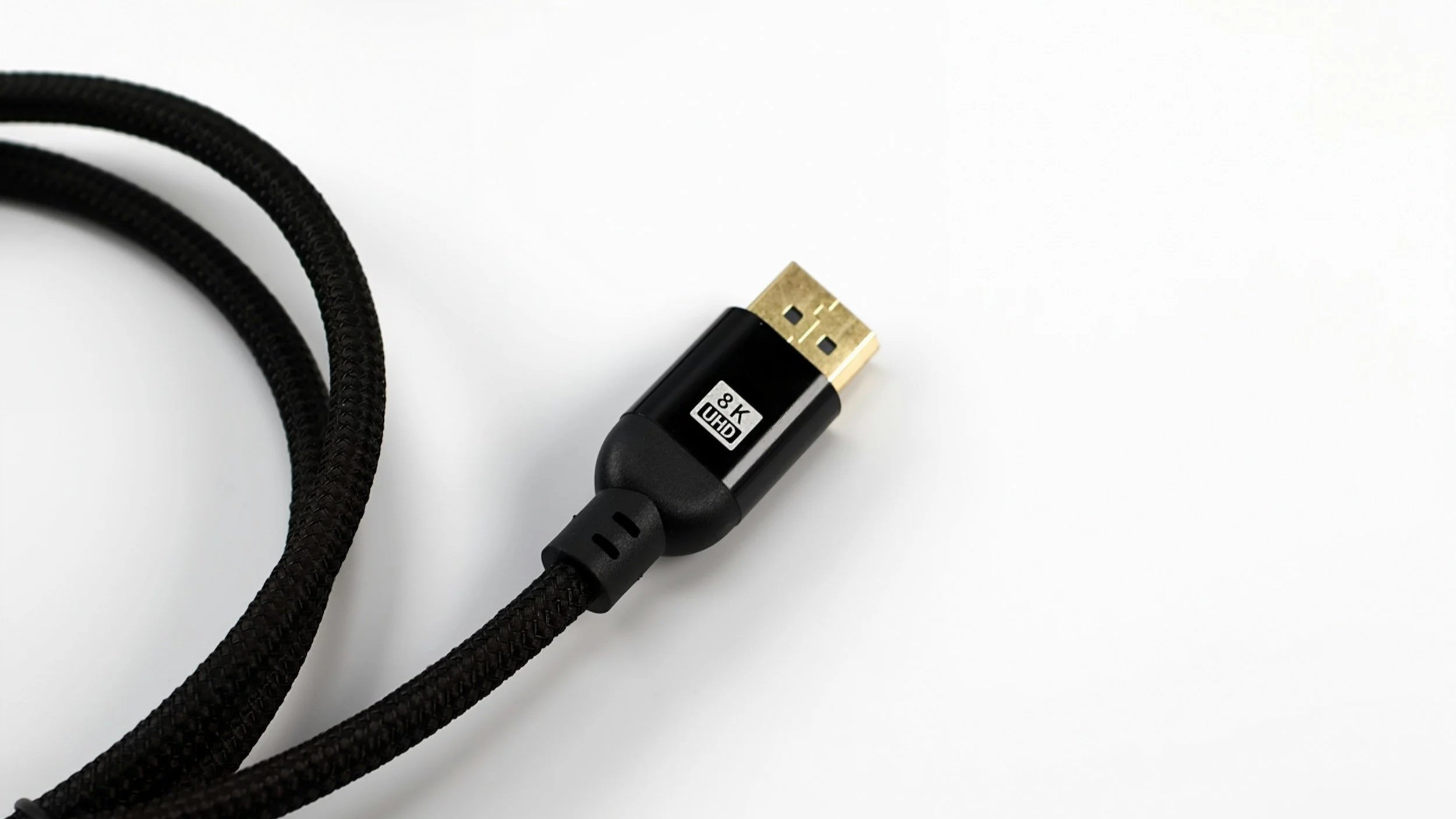
Buy the shortest cable that still leaves a bit of slack, so it isn't under tension or bent sharply. Passive copper cables become less reliable as bandwidth and length go up, so as a rough guide:
Up to about 6–10 feet: a certified passive copper cable is the simplest choice, even for 48 Gbps.
About 10–16 feet: choose a reputable certified cable and test it with your equipment at its highest setting before hiding it behind furniture.
Longer than about 16 feet at 4K/120 Hz or 8K: consider an active or fiber optic cable, such as the Highwings 50 ft fiber optic HDMI cable. These are usually directional, with marked source and display ends, so check that you connect them the right way and that they support eARC and CEC.
If you're running a cable through a wall or ceiling, test it before you close everything up, and use a conduit if you can so it's easy to replace later.
Common HDMI buying mistakes
Buying based on "HDMI 2.1" or "8K" labels instead of the official cable category and QR-verifiable certification.
Assuming every HDMI port on your TV or receiver supports the same features and bandwidth.
Expecting a new cable to unlock 4K/120 Hz, VRR or eARC when one of your devices doesn't support it.
Forgetting that adapters, wall plates, switches and receivers can be the weakest link. This also applies when you use a USB-C to HDMI adapter, which we cover in our guide on how to connect your phone to a TV.
Paying extra for gold plating while ignoring certification, length and how the cable will be installed.
How to fix HDMI connection problems
If you get a black screen, flickering or sound dropouts, start by checking that every device in the chain, including the TV port, supports the mode you're trying to use. Then try a shorter certified cable and connect the source directly to the TV, skipping any adapters, switches or receivers.
Many TVs also need an enhanced HDMI mode switched on for 4K/120 Hz or HDR, and manufacturers call it different things, like Input Signal Plus, HDMI Enhanced Format or HDMI Deep Color. Updating the firmware on your devices and turning everything off and on again can also help.
And if 4K/120 Hz works without HDR or VRR but fails when you turn them on, the connection is probably right at its bandwidth limit, which usually means the cable needs replacing.
HDMI cable buying checklist
Decide the highest resolution, refresh rate and HDR format you'll actually use.
Check which features each HDMI port on your devices supports.
Choose Premium High Speed for up to 18 Gbps, Ultra High Speed for up to 48 Gbps, or Ultra96 only for HDMI 2.2 devices that need it.
Look for the official certification label and scan the QR code.
Use the shortest practical length, and an active or fiber optic cable for long runs.
Test the whole setup at its highest setting before hiding the cable.
Final thoughts
For most people, a certified Ultra High Speed HDMI cable is the best balance of price, performance and future-proofing, and it doesn't need to cost more than $10–20. Premium High Speed cables are still perfectly fine for 4K at 60 Hz, and Ultra96 only matters if your equipment specifically asks for it.
Ignore promises of better picture quality, match the cable to the bandwidth you need, keep it short and check the certification. If you're setting up a new TV, our ranking of the best OLED TVs of 2026 can help you choose one with enough fully featured HDMI 2.1 ports.
