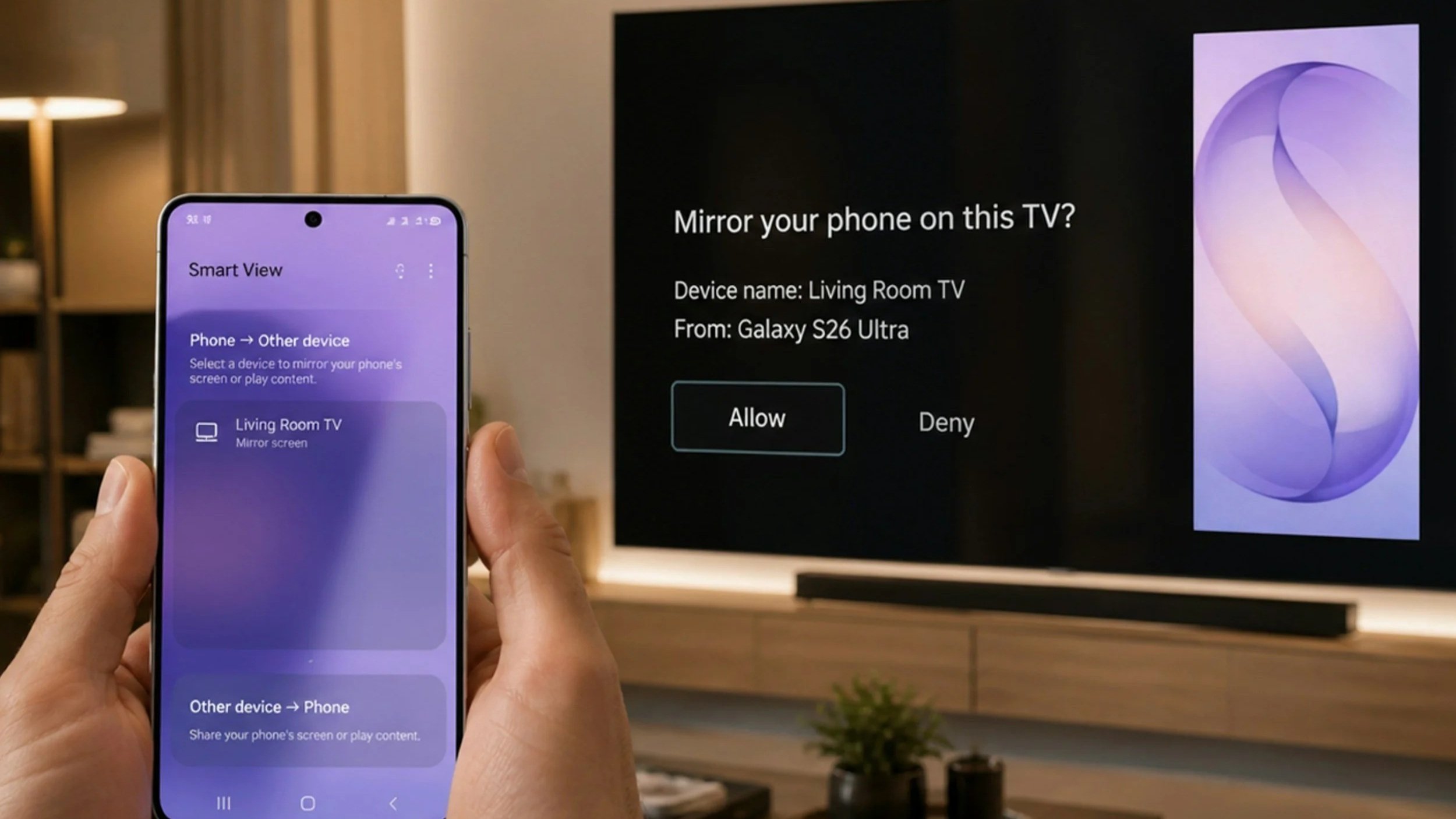
Want to show photos from your phone on a big screen, or share a video with friends without everyone crowding around your smartphone? Connecting your phone to a TV is easier than you might think. In this guide, we'll show you how to share your screen using AirPlay, Chromecast, Miracast, an HDMI cable and a few other methods, so you can get more out of your TV.
Screen casting vs screen mirroring: what's the difference?
Before we get to specific solutions, it's worth understanding the difference between screen casting and screen mirroring.
Screen casting sends content such as a Netflix video or Spotify music from your phone to the TV. Your phone works like a remote control, while the TV streams and plays the content itself. This saves your phone's battery and usually gives better picture quality. You don't see your phone's whole screen on the TV, only the content being played.
Screen mirroring shows everything on your phone's screen on the TV in real time, including apps, notifications and games. It's ideal for presentations, mobile games or showing photos, but it drains your phone's battery faster than casting and needs a stable connection.
iPhone, iPad and Mac: AirPlay
AirPlay is Apple's simple and intuitive way to send video and audio wirelessly from an iPhone, iPad or Mac to a TV. Depending on the app, it either mirrors your screen or streams content directly, choosing whichever gives the best quality. If you're thinking about a new Apple phone, our guide to which iPhone you should buy in 2026 compares every current model.
How to use AirPlay screen mirroring
Open Control Center. On an iPhone or iPad with Face ID, swipe down from the top-right corner of the screen; on models with a Home button, swipe up from the bottom. On a Mac, click the Control Center icon in the menu bar.
Tap Screen Mirroring.
Choose your Apple TV or AirPlay-compatible smart TV from the list.
If a code appears on the TV, enter it on your device.
What you need for AirPlay
An Apple TV 4K connected to your TV via HDMI, or an AirPlay-compatible smart TV, such as many recent LG, Samsung and Sony models
Your Apple device and TV connected to the same Wi-Fi network
Android phones: Smart View, Chromecast and Miracast
Method 1: Smart View and other built-in mirroring features
Most Android phones have a built-in screen mirroring feature, but its name depends on the manufacturer. Samsung calls it Smart View, while other brands use names like Cast, Screen Cast or Screen mirroring.
Make sure your phone and TV are connected to the same Wi-Fi network.
Swipe down from the top of the screen to open Quick Settings.
Tap the screen mirroring tile (Smart View, Cast, Screen mirroring or similar).
Select your TV from the list of available devices.
Method 2: Chromecast (Google Cast)
Google Cast, the technology behind Chromecast, lets you send content from your phone to a bigger screen, much like Apple's AirPlay. Many smart TVs have it built in, including every TV running Google TV; you can find out more in our article explaining the difference between Android TV and Google TV. If your TV doesn't support it, or you want to use a projector, you can connect a streaming device such as the Google TV Streamer via HDMI. For more options, take a look at our ranking of the best streaming devices of 2026.
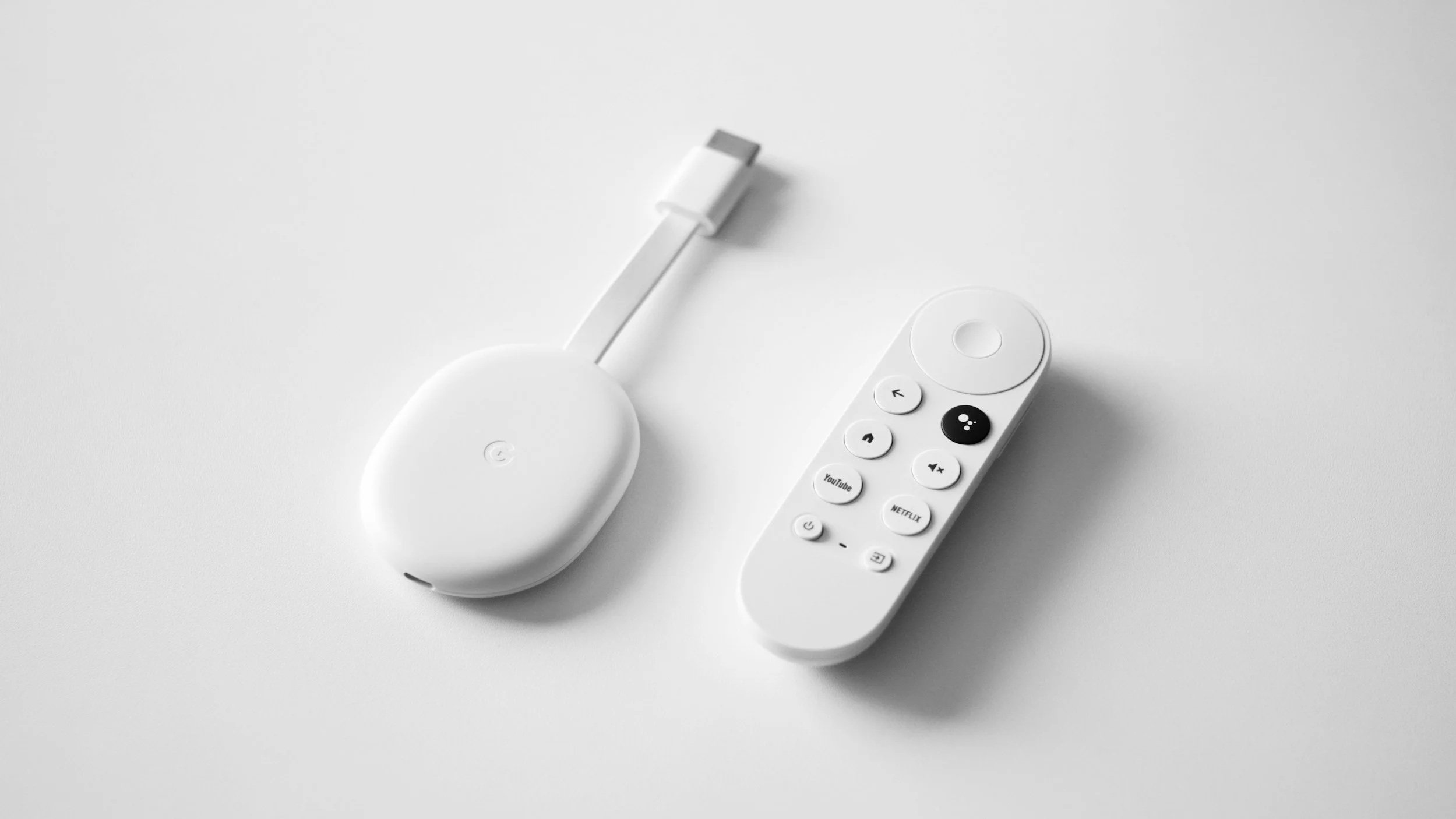
To cast, make sure your phone and TV are on the same Wi-Fi network. Apps that support casting, such as YouTube and Netflix, show the Cast icon: a rectangle with a Wi-Fi symbol in the corner. Tap it and choose your TV.
You can also mirror your entire Android screen:
Install and open the Google Home app.
Select your Chromecast or Google TV device.
Tap Cast my screen, and your phone's screen will appear on the TV.
Method 3: Miracast
Miracast lets you share your phone's screen with a TV without a regular Wi-Fi network. It uses Wi-Fi Direct to create a direct connection between your phone and the TV or a wireless display adapter, which makes it a great option when there's no router around. We cover it in more detail in our guide explaining what Miracast is and how it works.
Check that your TV supports Miracast and turn on its screen mirroring option.
On your phone, open Quick Settings and tap Cast, Smart View or Screen mirroring.
Select your TV from the list.
Keep in mind that not every Android phone supports Miracast. Google Pixel phones, for example, only work with Google Cast.
What if none of these methods works?
Use a cable
A wired connection is less convenient, but it's more stable and has no lag. Not every cable can carry video, though, not even every USB-C cable, and your phone's USB-C port also needs to support video output. Many flagship Android phones and iPhones with a USB-C port do, and in that case a USB-C to HDMI cable is all you need. Older iPhones with a Lightning port need Apple's Lightning Digital AV Adapter instead.
Connect the cable to your phone and to an HDMI port on your TV.
Select the correct input on your TV, such as HDMI 1 or HDMI 2.
Your phone's screen should appear on the TV automatically. Some phones, such as Samsung Galaxy models, may ask whether you want to mirror the screen or start Samsung DeX.
Use a Windows computer
If you can't connect your phone directly, you can use a laptop instead. Computers running Windows 8.1 or later can send their screen to a TV wirelessly using Miracast:
Turn on your TV's screen mirroring option.
Press Windows key + K.
Select your TV from the list of available displays.
Your computer can also use the TV as an extra monitor. Press Windows key + P and choose Extend to show different content on each screen.
Use a games console
Modern consoles such as the PlayStation 5 and Xbox Series X can also play streaming content on your TV. Apps like Netflix, Disney+, Prime Video and YouTube are available directly on the console, so you don't need your phone or computer at all, and you can even cast YouTube videos from your phone to the console.
Comparison of methods
Here's a quick overview of every method, what you need and what it can do:
| Method | What you need | Works with | Casting | Mirroring |
|---|---|---|---|---|
| AirPlay | Apple TV or AirPlay-compatible smart TV | iPhone, iPad, Mac | ✓ | ✓ |
| Google Cast (Chromecast) | Google TV Streamer, Chromecast or smart TV with Google Cast | Android, iPhone (in supported apps), Chrome browser | ✓ | ✓ (Android) |
| Smart View and similar | Smart TV | Android | ✗ | ✓ |
| Miracast | Smart TV or wireless display adapter | Android, Windows | ✗ | ✓ |
| Cable | USB-C to HDMI cable or adapter | Android, iPhone | ✗ | ✓ |
| Windows PC | Miracast-compatible TV | Windows | ✗ | ✓ |
| Games console | PlayStation or Xbox | Apps on the console, YouTube casting from Android and iPhone | ✓ | ✗ |
