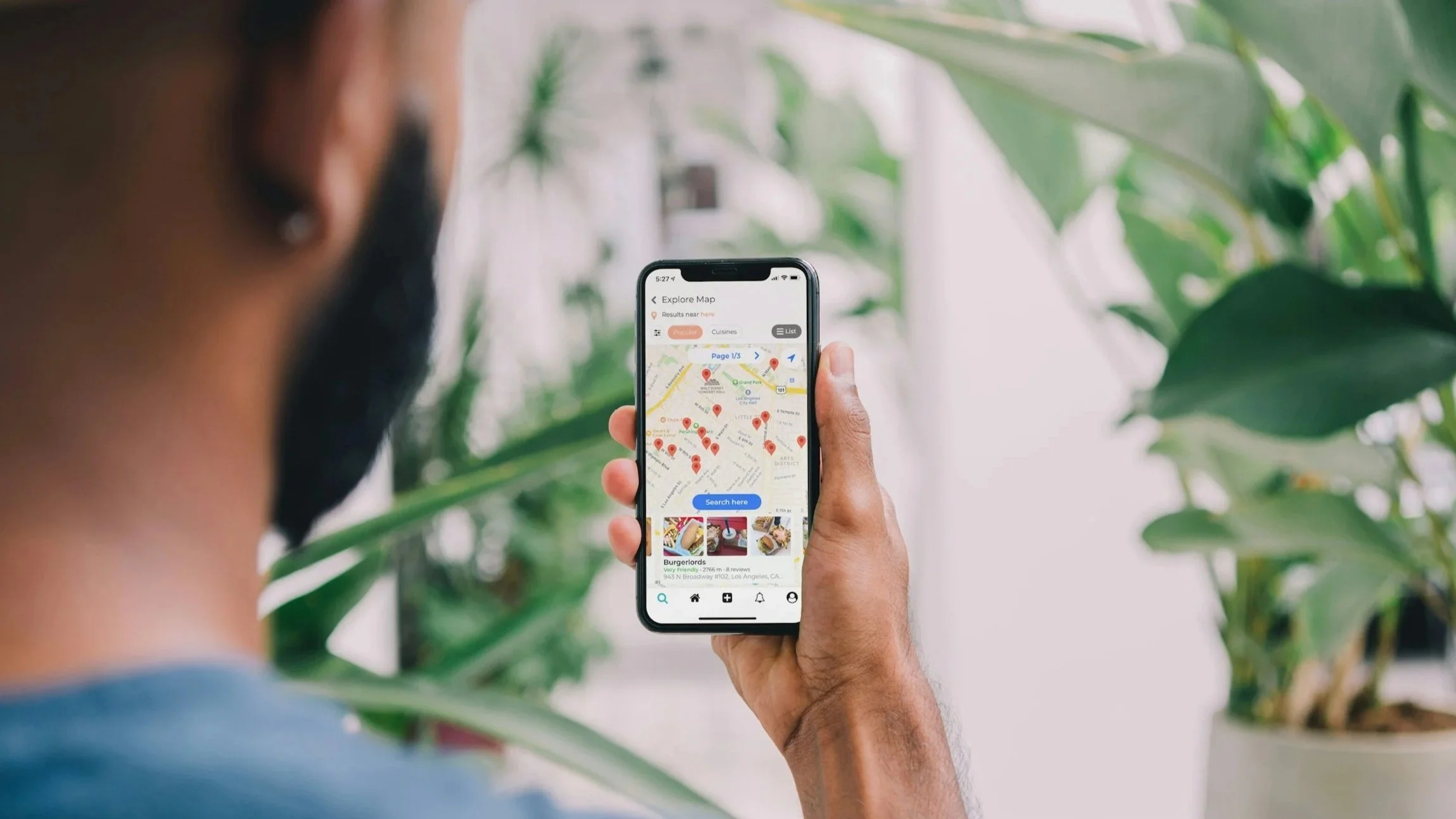
Sharing a location quickly and accurately can be extremely useful. Maybe you want to show friends where to meet, send someone an interesting place you've found, or simply let a family member know where you are. Google Maps makes all of this simple. In this guide, we'll show you step by step how to send a location pin and share your real-time location, both on a smartphone and on a computer.
What is a Google Maps pin?
Google Maps is used for many things, from basic navigation to complex route planning. Businesses use it to show their contact details, photos, reviews and busy times, while for everyday users it's an essential travel companion: it finds the fastest route, shows traffic conditions, helps you discover local attractions and makes it easy to meet friends at an agreed spot.
A pin is the small red marker that Google Maps places on the map to mark a specific location, such as a meeting point, a tourist attraction or someone's home. Once a pin is placed, you can share it with others or use it to get the exact GPS coordinates of that spot. Sending one is easier than you might think, and the steps are only slightly different on a phone and a computer.

How to send a location pin in Google Maps
On a phone (Android and iPhone)
Open the Google Maps app.
Search for a place by typing an address or name, or use voice search.
Select the place from the results and a red pin will appear. If it isn't listed, touch and hold anywhere on the map to drop a pin manually.
Tap Share in the information panel at the bottom of the screen.
Choose an app, such as WhatsApp, Messenger or Messages, or tap Copy to copy the link.
Pick a contact or group and send the link.
On a computer
Open Google Maps in your web browser.
Search for a place or click a spot on the map.
When the place is selected, an information panel appears on the left. If the spot has no address, a small card appears at the bottom of the screen instead.
Click Share.
Click Copy link and paste it into your messaging app or email.
Need the exact coordinates? On a computer, right-click the spot on the map and the coordinates will appear at the top of the menu; click them to copy. On a phone, drop a pin and the coordinates will be shown in the search box.
How to share your real-time location
Google Maps can also share your location in real time. The person you share it with sees your profile picture moving on their map, which is handy when you're both on the move or when your location is hard to describe.
Open the Google Maps app and tap your profile picture in the top right corner.
Tap Location sharing, then Share location.
Choose how long you want to share your location for, from 15 minutes up to Until you turn this off.
Pick a contact, or choose an app to send the link through.
To stop sharing early, go back to Location sharing, tap the person and select Stop. On a computer, you'll find the same option under Location sharing in the Google Maps menu.
Protect your privacy. Anyone who receives the link can follow your location for as long as sharing is on, so only share it with people you trust. Google Maps lets you control who can see your location and for how long, and you can turn the saving of visited places in your Timeline on or off at any time. It's worth checking these settings regularly and adjusting them to suit your needs.
Emergency SOS: sharing your location in an emergency
Most smartphones also have a built-in emergency feature. On many phones, pressing a set button combination, such as the power button five times on Android or the side and volume buttons on an iPhone, triggers Emergency SOS. Depending on your phone and settings, it can sound a loud alarm, call emergency services and send a text message with your exact location to your chosen emergency contacts.
You can also add medical information, such as your blood type, allergies, medication or organ donor status, which first responders can see on your lock screen. You'll find these options in your phone's safety and emergency settings, and it's best to set them up before you ever need them.
What about a location tracker?
If you travel often, or want your loved ones to know where you are without sharing your location manually every time, a dedicated tracker can help. Small Bluetooth trackers such as Apple AirTag or Samsung Galaxy SmartTag report their position through nearby phones, which makes them great for keys, bags and luggage. True GPS trackers have their own GPS and mobile connection, so they keep reporting their location even when your phone's battery is flat or the phone is lost.
Both types are compact and easy to set up. Bluetooth tags can run for around a year on a single coin-cell battery, and many trackers are water and dust resistant, so they work reliably in all kinds of conditions. Just remember to use them only for your own belongings, or with the consent of the person carrying them.
Other useful Google Maps features
Saved places. You can save your home and work addresses and build lists of places you visit often, even your favourite park bench for weekend afternoons. Saved places make it quicker to start navigation.
Lists and custom maps. Lists let you group your favourite places, add notes and share them with friends, which is ideal for planning a holiday or recommending the best local restaurants. For more detailed maps with your own routes, layers and descriptions, you can use Google My Maps.
Offline maps. Downloading maps to your phone is very practical when travelling abroad or visiting areas with poor coverage. Tap your profile picture, choose Offline maps and select the area you need. You can then navigate, search for addresses and see information such as opening hours without an internet connection.
Public transport and bookings. Google Maps shows public transport timetables and, where available, lets you book a restaurant table directly in the app. This makes it a central tool for planning both everyday trips and longer journeys.
Live View. Available for walking navigation, Live View combines the map with augmented reality. After planning a route, tap Live View and point your phone's camera at your surroundings: arrows showing the right direction, street names and information about nearby places will appear on the screen. Use it only when you need it, for example at turns or near your destination, and put your phone away while walking to stay safe and save battery. If you rely on navigation all day, our guide on how to charge your phone properly and make the battery last longer has more useful tips, and a compact power bank is worth packing for longer trips.
Timeline. Timeline shows your location history: where you were on a given day and when you arrived. It also records your journeys, so you can rediscover, for example, the name of the café where you had that perfect espresso, and it shows statistics such as distances travelled and how you got around. Timeline is now stored on your phone rather than in the cloud and is only available in the mobile app, and you can pause or delete it at any time.
Google Maps: from launch to everyday essential
Google Maps launched in 2005 and quickly changed the way people around the world use digital maps. Public transport directions arrived soon after, Street View followed in 2007 and let people explore cities virtually, and features such as offline maps, real-time location sharing and Live View have since turned it into a complete travel assistant.
It's worth taking a little time to learn the app's most useful features. Knowing how to share a pin or your live location, create lists, download offline maps and navigate with Live View can make everyday life easier, help you organise trips and give you useful support in an emergency.
