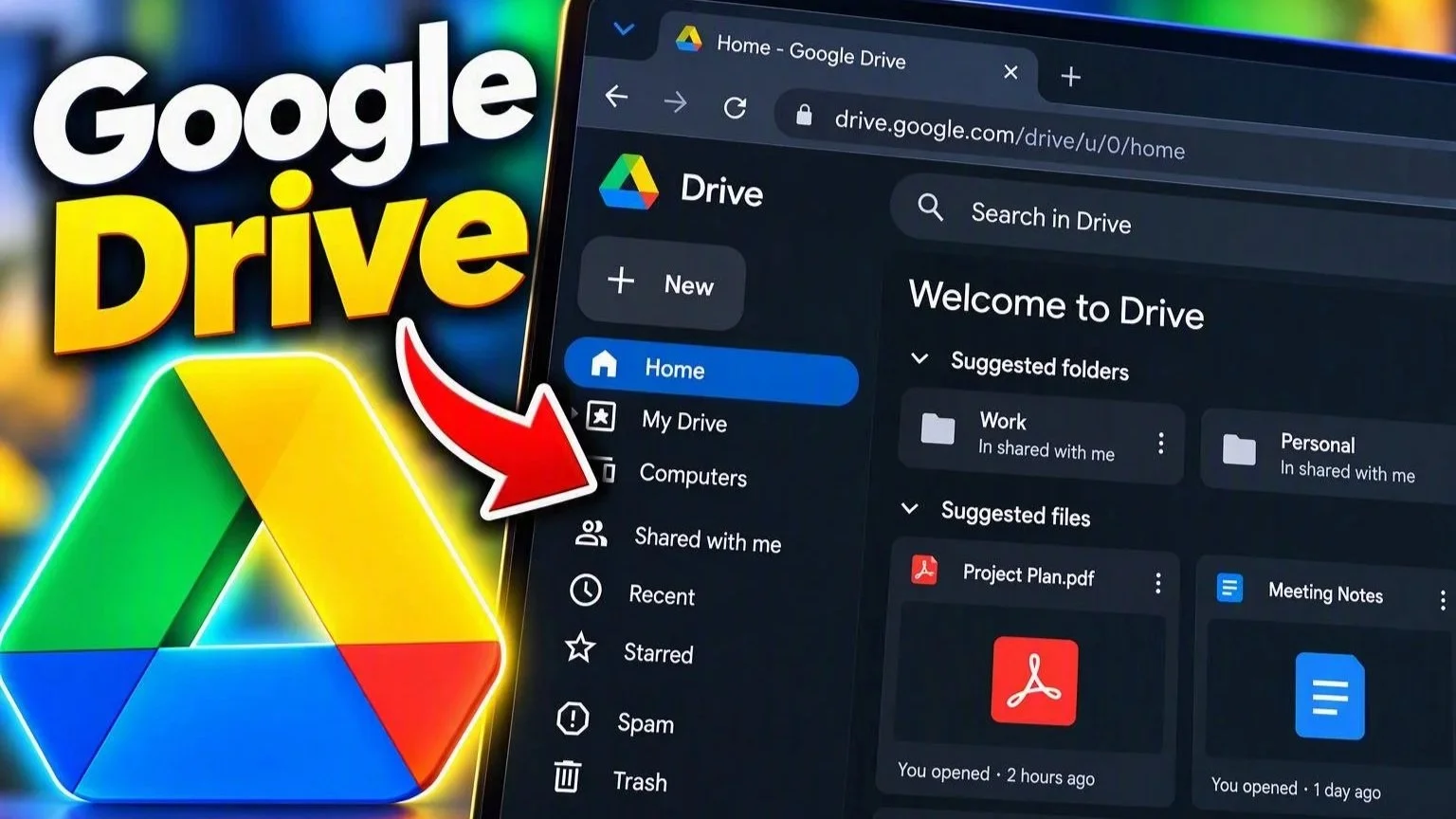
Google Drive is one of the most popular cloud storage services in the world. It lets you store files online, open them on different devices, share documents with other people and keep important data in sync between your phone and computer.
If you already use Gmail, there's a good chance you have Google Drive too, even if you've never opened it. In this guide, we'll explain what Google Drive is, how it works, how much storage you get, how to upload and share files, and whether it's safe to use.
What is Google Drive
Google Drive is a cloud storage service that lets you save, sync and share files online. The easiest way to think about it is as a hard drive that lives on Google's servers instead of inside your computer. Because your files are stored online, you can reach them from almost any internet-connected desktop, laptop, phone or tablet. You just sign in to your Google Account, and everything is there.
That makes Drive particularly handy if you switch between devices a lot. You might start a document on your laptop at work, keep editing it on your computer at home and then check it on your phone while traveling, all without carrying a USB drive around.
How much free storage does Google Drive offer?
A standard Google Account includes 15GB of free cloud storage. That space isn't reserved for Drive alone, though. It's shared between Google Drive, Gmail and Google Photos, so large email attachments, photos, videos and Drive files all count toward the same limit.
For light use, 15GB can last a long time. If you back up a lot of photos and videos, it disappears much faster. A few years of smartphone photography has a remarkable ability to turn "15GB sounds like plenty" into "where did all my storage go?"
What can you do with Google Drive?
The main features are simple. You can store files of almost any kind, from documents and PDFs to photos, videos, presentations and ZIP archives. You can sync files between devices with Google's desktop app, which keeps selected folders on your computer and in the cloud identical. You can share files and folders without attaching them to an email, and you can collaborate online, because Drive works closely with Google Docs, Sheets and Slides, so several people can edit the same document in real time.
Drive can also keep extra copies of important files as part of your backup strategy. That last point deserves a little more attention. Cloud storage is extremely convenient, but important files should exist in more than one place. If you're storing years of photos or irreplaceable documents, it's still a good idea to keep another copy on an external SSD or hard drive. If you're not sure which one to get, our ranking of the best external SSDs of 2026 compares the top models.
How to create a Google Drive account
You need a Google Account to use Google Drive. If you already use Gmail, YouTube, Google Photos or another Google service, you don't need to create anything new, because Drive is already part of your account.
If you don't have a Google Account yet, setting one up only takes a few minutes:
Go to Google's account creation page.
Choose Create account.
Enter your name and the other requested information.
Choose your account details and password.
Complete Google's verification process.
Accept the terms.
Once your account is active, you automatically get access to Google Drive. There's no separate Drive account, since the same Google Account is your login for Gmail, Drive, Photos, YouTube and many other Google services.
Where can you find Google Drive
Google Drive can be accessed in several different ways, depending on the device you're using.
Google Drive in a web browser
On a computer, the simplest method is to go to drive.google.com and sign in with your Google Account. From there, you can browse your files, create folders, upload, rename, move, share and delete items, and search everything you've stored. You can also reach Drive from any Google page you're signed into: click the nine-dot grid icon near the top-right corner and select Drive.

Google Drive on Android
On many Android phones, the Google Drive app comes preinstalled. Look for the green, yellow and blue triangle icon, or search for "Drive" in your app list. If it isn't there, you can download it from Google Play. Once you sign in, you'll see the same files that are stored in your Drive on every other device.
Google Drive on iPhone and iPad
Google Drive is also available for iOS and iPadOS from Apple's App Store. The app works much like the Android version, letting you browse folders, upload files, share documents and search your Drive. It also integrates with Apple's Files app, so Drive files can appear next to iCloud Drive and other storage services.
That makes Drive a practical choice if you have an iPhone but use a Windows computer, or if you're moving between platforms. If you're switching phones, our guide on how to transfer data from Android to iPhone explains how to bring the rest of your data with you.
How to upload files to Google Drive
Uploading files is straightforward on any device.
On a computer
Open Google Drive in your browser, click New and choose File upload or Folder upload. Alternatively, just drag files from your computer straight into the browser window. How long the upload takes depends mainly on the size of the files and the speed of your internet connection. A Word document appears almost instantly, while a folder with 80GB of 4K vacation footage may give you time to reconsider how much of that vacation really needed filming.
On a phone
Open the Google Drive app, tap the + button and choose the upload option. Depending on your phone, you can pick photos, videos, documents, downloaded files and other items stored on the device. You can also create folders directly in the app to keep things organized.
How does Google Drive synchronization work?
Uploading individual files is useful, but Drive becomes far more powerful with automatic syncing. Google offers a free app called Google Drive for desktop for Windows and macOS. Once it's installed, Drive appears inside your computer's file system, so you can work with cloud files much like normal folders. A file you save on one computer then shows up on any other device signed into the same Google Account.
Streaming vs. mirroring files
Google Drive for desktop can handle your files in two ways. Streaming files keeps most of your data in the cloud and only downloads files when you open them, which saves space on your computer. Mirroring files keeps a full local copy on your computer while syncing it with Drive, which uses more disk space but means your files stay available offline.
Which option is better depends on how much storage your computer has and how often you work without an internet connection. On a laptop with a small SSD, streaming can save a lot of space. For important documents you need offline, keeping local copies is safer and more convenient.
Google Drive vs. Google Photos
Google Drive and Google Photos are related, but they aren't the same thing. Drive is designed for general file storage, while Photos is built specifically for photos and videos. If you want to back up your entire phone camera roll automatically, Google Photos is usually the better tool, with features such as albums, photo search, face and object recognition and automatic organization.
Drive makes more sense for documents, PDFs, project folders, presentations, archives and work files. Both services use the same storage tied to your Google Account. If you're mainly trying to decide where to keep your phone's pictures, our guide comparing cloud, SSD and backup options for phone photos walks through the choices. And if your photo and video library has outgrown the cloud altogether, a home server can be an alternative; our guide explaining what a NAS is and how to choose one covers that option.
How to recover deleted files from Google Drive
Deleted something by accident? You may still be able to get it back. When you delete a file from Google Drive, it moves to the Trash instead of disappearing immediately, and Drive keeps it there for 30 days before deleting it permanently.
To restore a deleted file:
Open Google Drive.
Select Trash from the menu.
Find the file you want to recover.
Right-click it.
Select Restore.
The file goes straight back to where it was. This is extremely useful after a round of "organizing" your folders, a process that somehow always ends with deleting the one file you actually needed. Just keep in mind that once a file has been permanently deleted from the Trash, recovering it becomes much harder and may not be possible at all.
How to share files and folders in Google Drive

Sharing is one of Google Drive's biggest strengths. Instead of attaching large files to an email, you upload them once and give people access. There are two main ways to do it.
Share with specific people
Right-click a file or folder, choose Share and enter the email addresses of the people you want to give access to. You can also decide what they're allowed to do. A Viewer can open the file but not change it, a Commenter can leave comments without editing, and an Editor can modify the file. The last option is especially useful when several people are working on the same project.
Share using a link
You can also create a shareable link and send it by email, Slack, Messenger or any other app. Be careful with the permissions, though. If you're sharing something private, don't set the link so that anyone on the internet can open it. Always check whether access is limited to specific people, people in your organization or anyone with the link. A presentation for coworkers and a scan of your passport probably shouldn't use the same privacy settings.
Working together in Google Drive
Google Drive is more than storage. Its integration with Google Docs, Google Sheets and Google Slides makes it a powerful collaboration tool. Several people can work on the same document at the same time and see each other's changes almost instantly. You can also add comments, suggest edits, reply to discussions and use version history to restore earlier versions of a file.
That makes Drive particularly useful for school projects, remote work, shared spreadsheets, collaborative writing and team planning. Instead of emailing files back and forth with names like presentation-final-v4-FINAL-really-final2.pptx, everyone simply works on the same document. Civilization progresses.
How much Google Drive storage do you get
Every standard Google Account starts with 15GB of storage, shared across Drive, Gmail and Google Photos. If you need more space, Google sells extra storage through Google One. In the US, plans currently start with 100GB for $1.99 a month, while larger plans with 2TB or more are now bundled with Google's AI features. Prices and plan names vary by country and change from time to time, so check Google One for the current options before you subscribe.
For many people, 100GB is enough for documents, email and a moderate photo collection. If you regularly record 4K video or keep a huge Google Photos library, a 2TB plan makes more sense.
What else do you get with Google One?
Google One is more than extra Drive storage. Depending on your plan and region, you can share your storage with family members and get extra Google Photos editing features, as well as access to Google's premium AI tools on the higher tiers. Those extras change over time, though, so the storage capacity itself is the most reliable reason to pick a particular plan.
Is Google Drive a backup?
This question is a little more complicated than it looks. Google Drive can be part of a backup strategy, but syncing and backing up aren't quite the same thing. If you accidentally delete a synced file and that deletion syncs to all your devices, the file may disappear everywhere. The Trash gives you a recovery window, but you still shouldn't assume that a file in Google Drive never needs another copy.
For important data, a safer setup looks something like computer → Google Drive → external SSD, or phone → cloud storage → separate local backup. That protects you against device failure, accidental deletion, account problems and other surprises. Cloud storage is excellent. Cloud storage plus another independent backup is better.
Is Google Drive safe
Google uses extensive security systems to protect the data stored on its servers. But the security of your Drive also depends heavily on how well you protect your Google Account, and the two most important steps are a strong password and two-factor authentication.
Use a strong, unique password
Don't reuse a password you already use on other websites. If one of those services suffers a data breach, attackers may try the same password on your Google Account. A password manager makes using unique passwords much easier.
Enable two-factor authentication
Two-factor authentication, or 2FA, adds another layer of protection. Even if someone discovers your password, they still need a second verification step before they can get in. Depending on your setup, that can be a prompt on your phone, an authenticator app or a physical security key. For an account holding years of emails, photos and documents, turning on 2FA is one of the simplest security upgrades you can make.
Check what you're sharing
The other major risk isn't Google Drive itself, but accidentally giving someone access to something they shouldn't see. Every now and then, review the files and folders you've shared and check their permissions. "Anyone with the link" is convenient, but it also means exactly what it says.
What happens if you lose internet access?
Because Google Drive is a cloud service, many features need an internet connection. You can still make selected files available offline, though. On a computer, Google Drive for desktop can keep local copies, and Google Docs, Sheets and Slides support offline editing once you turn it on. On phones and tablets, you can mark individual files as available offline. That's handy when you're traveling, working on a train or walking into one of those mysterious buildings where mobile reception instantly disappears.
Should you use Google Drive?
For most people, yes. Google Drive is convenient, easy to use and especially useful if you already rely on Gmail, Google Photos, Android, Chrome or Google's productivity apps. It works particularly well for opening files on several devices, sharing large files, collaborating on documents and keeping your work in sync.
It isn't necessarily a complete replacement for local storage, though. Large video collections can get expensive to keep entirely in the cloud, and important files should still have a backup somewhere else. But as an everyday cloud storage and collaboration service, Google Drive remains one of the easiest options around.
Google Drive explained – the bottom line
Google Drive is an online storage service that lets you save, sync, access and share files through your Google Account. You get 15GB of storage with a standard account, shared with Gmail and Google Photos, and you can buy more through Google One. You can use Drive in a web browser, in the mobile app or through Google Drive for desktop, and its tight integration with Docs, Sheets and Slides makes it especially good for working together.
For most users, the biggest advantages are simple: your files aren't tied to a single device, sharing is easy, and everything stays in sync automatically. Just don't treat cloud storage as an excuse to forget about backups. Google Drive can protect you from a dead laptop. A second backup can protect you from everything else.
