Where Should You Store Photos From Your Phone – Cloud, SSD and Backup Options Explained
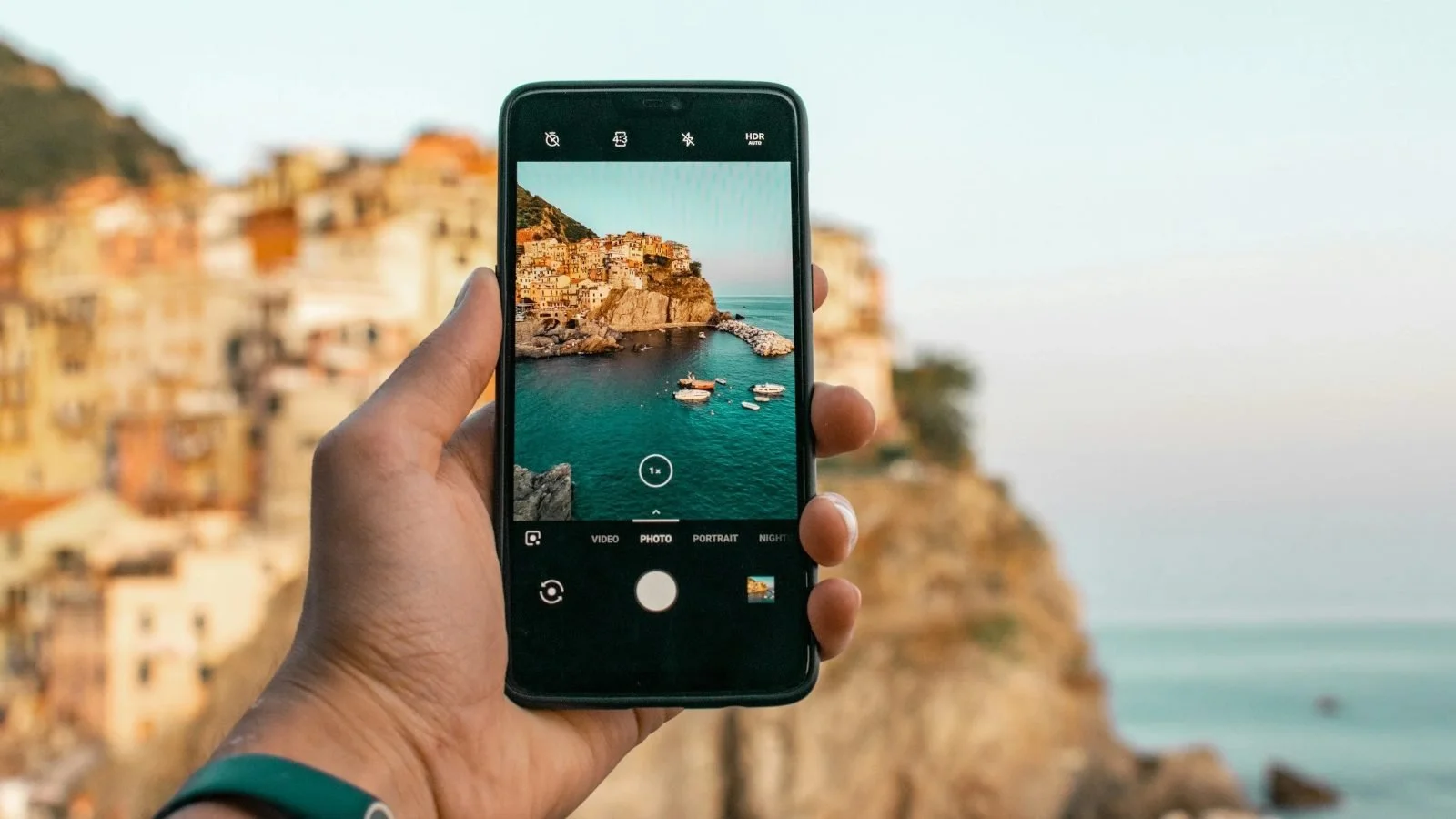
Photos and videos have a habit of filling up a phone much faster than expected. Moving them somewhere else can free up storage, but there’s a more important reason to think about where your photos are stored: your phone shouldn’t be the only place where your memories exist.
So where should you store photos from your phone?
For most people, the best solution is a combination of cloud storage and a second backup, such as an external SSD or hard drive. But there are several options, and each makes sense for a slightly different type of user.
As an Amazon Associate, I earn from qualifying purchases. Links to products in this article are affiliate links.
What is the best way to store phone photos?
There isn’t one perfect storage method for everyone. The main options are:
| Storage option | Best for | Main advantage | Main drawback |
|---|---|---|---|
| Cloud storage | Most people | Automatic backup and easy access | Usually needs a subscription |
| External SSD | A fast second copy | Fast, portable, no monthly fee | Can be lost or damaged |
| External HDD | Large archives | Lots of storage for the money | Slower and more fragile |
| USB flash drive | Quickly moving files | Tiny and convenient | Not good as your only backup |
| NAS | Advanced users and families | Your own private cloud at home | Higher cost and more setup |
For most users, I would start with cloud storage because it can protect new photos automatically. Then, if the photos are genuinely important, keep another copy somewhere else. Because “I’ll back them up later” has a remarkable ability to become “I wish I had backed them up.”
External SSDs and hard drives
One of the simplest ways to store photos outside your phone is an external drive.
You have two main options: HDD and SSD.
External HDD – best for large, inexpensive archives
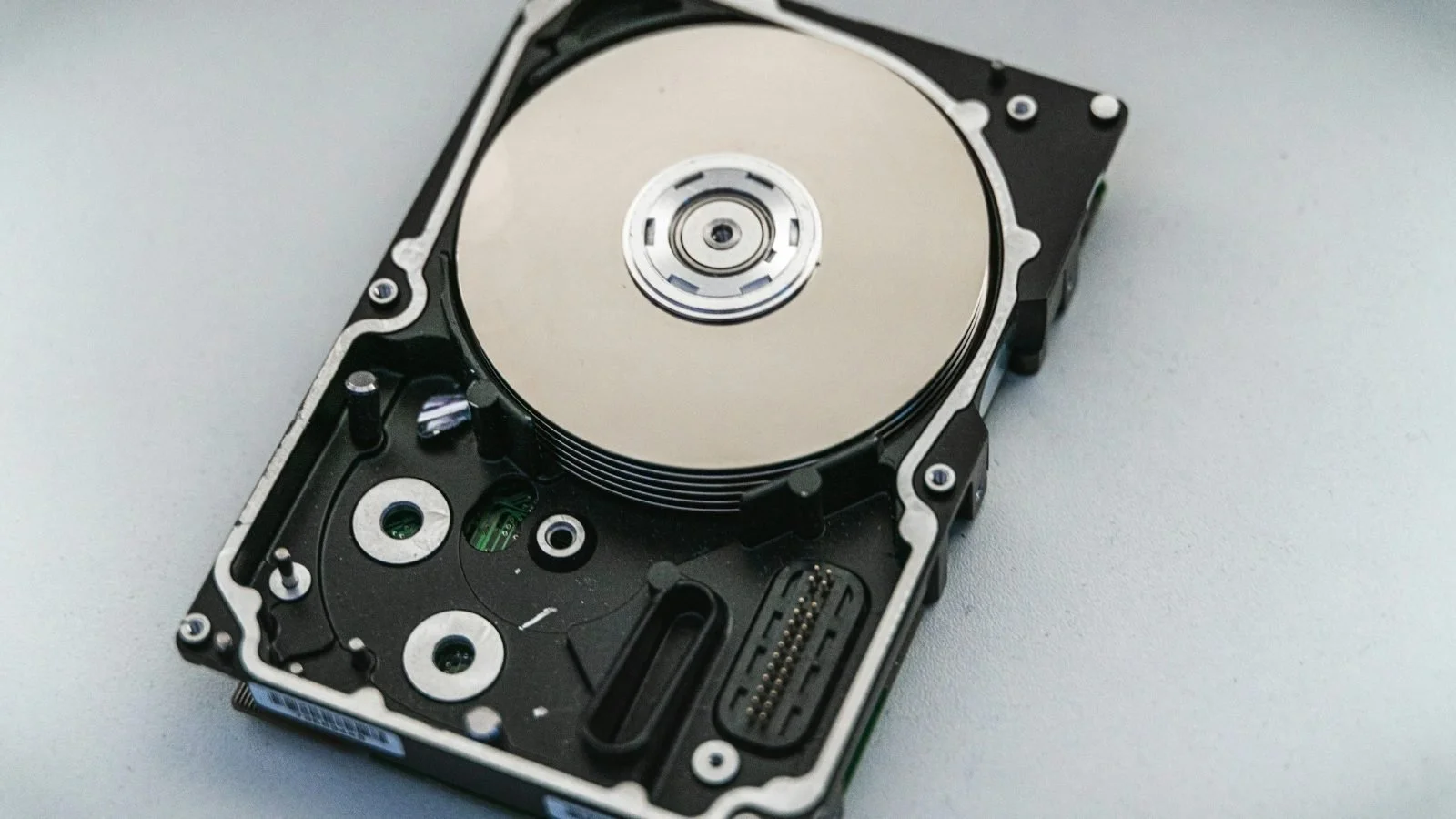
Traditional external hard drives use spinning magnetic disks. Their biggest advantage is simple: storage capacity is relatively inexpensive. If you have hundreds of gigabytes or several terabytes of photos and 4K video, an HDD can be a very economical way to build a large archive.
They work particularly well as drives that mostly stay at home. You can periodically transfer photos from your smartphone to a computer and then copy them to the external drive.
The downside is durability. HDDs contain moving mechanical parts, which makes them more vulnerable to drops and strong impacts than SSDs. I wouldn't choose one as the drive I throw into a backpack every morning. For a large archive sitting safely on a desk, though, HDDs still make plenty of sense.
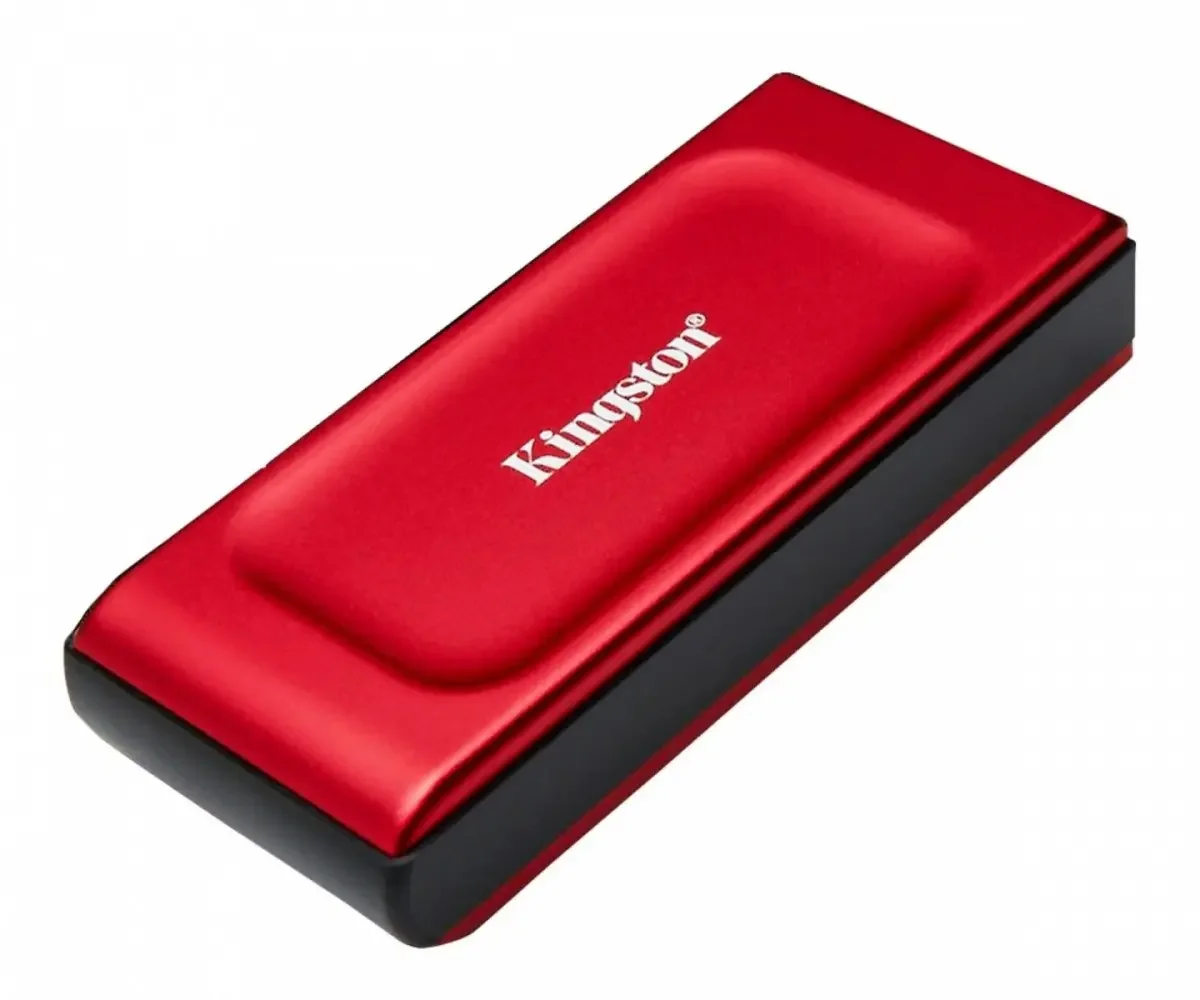
A popular choice is the WD 5TB My Passport, which gives you plenty of space for a big photo and video archive.
External SSD – probably the best physical option
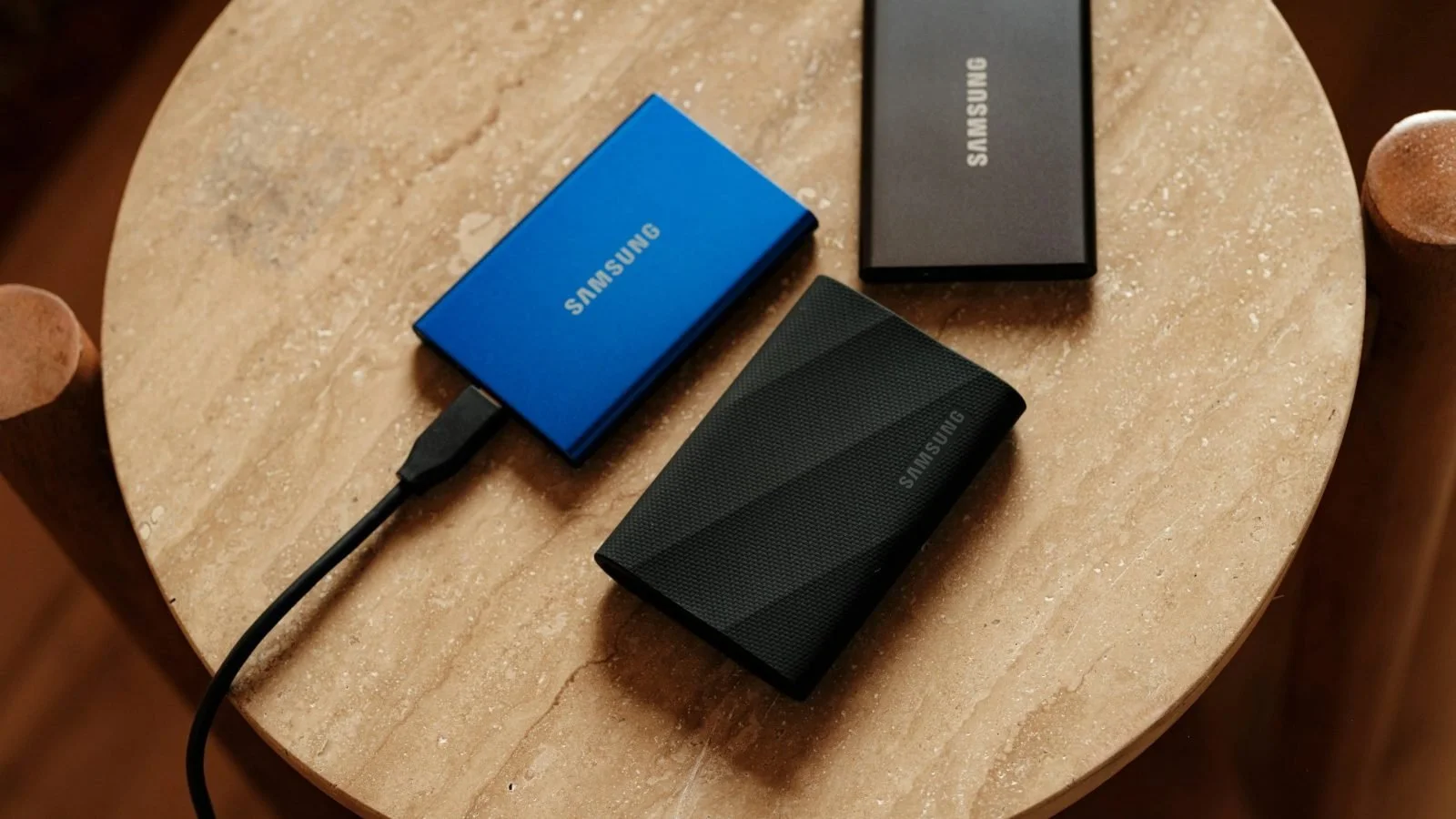
For most people who want physical storage, I prefer an external SSD. SSDs have no moving parts, making them faster, quieter and generally better suited to being carried around. They're also getting extremely small.
Many portable SSDs can now connect directly to modern smartphones over USB-C, allowing you to move large photo and video files without using a computer as the middleman.
That can be especially useful if you shoot a lot of 4K video. Plug in the drive, move your files, and suddenly your phone can breathe again. The disadvantage is cost. An SSD usually costs more than an HDD with the same capacity. But if you regularly move photos or videos between devices, I think the extra convenience is worth it.
Good options include the Samsung T7 Shield and the SanDisk Extreme Portable SSD. Both are small, tough and work with USB-C phones.
USB flash drives – useful, but not a real backup strategy
USB flash drives are still useful. Modern models with USB-C can connect directly to many Android phones and newer iPhones, making them an easy way to transfer files without a computer.
They're great when you need to:
quickly free up phone storage;
transfer photos between devices;
give someone a large set of files;
carry a small collection with you.
But I wouldn't use a tiny USB drive as the permanent home of every important photo you've ever taken. They're small. Which is both their greatest feature and the reason they mysteriously disappear into drawers, backpacks and dimensions science has yet to discover.
Think of a flash drive primarily as a transfer tool or additional copy, not your only archive.
If you want one for your phone, the SanDisk Ultra Dual Drive Go has both USB-C and USB-A, so it works with phones and computers.
Switching phones? My guide on how to transfer data from Android to iPhone also explains how to move your photos.
Cloud storage – the easiest option for most people
For the average smartphone user, cloud photo storage is probably the most convenient solution. Instead of manually copying photos somewhere every few weeks, your phone can upload new photos and videos automatically.
That gives cloud storage several advantages:
automatic uploads;
access from multiple devices;
easy sharing;
search and organization;
no physical drive to carry;
protection if your phone is lost, stolen or damaged.
Cloud providers also maintain their own data-storage infrastructure rather than relying on a single drive sitting in your house. The obvious downside is cost.
Once your photo library becomes large enough, you'll probably need a paid storage plan. And unlike buying an external SSD once, that subscription keeps coming back every month.
Google Photos, iCloud, OneDrive or something else?
There are several major cloud services that can automatically upload photos from a smartphone.
Google Photos
Google Photos is one of the easiest recommendations for Android users, although it also works very well on iPhone. It offers automatic photo and video backup, albums, sharing and powerful search features.
A standard Google Account currently includes up to 15 GB of storage, but that capacity is shared between Google Photos, Google Drive and Gmail. Once you need more, Google sells additional storage through Google One.
Google Photos is particularly useful if you value being able to search through a huge photo library without organizing every image manually.
iCloud Photos
For an iPhone owner, iCloud Photos is the most seamless option. It is integrated directly into Apple's Photos app and can keep your library synchronized across iPhone, iPad, Mac and other supported devices.
Apple currently provides 5 GB of free iCloud storage, so anyone with a substantial photo library will probably need an iCloud+ plan sooner rather than later.
Five gigabytes was generous when photos were taken with potatoes. Modern smartphones can use that rather quickly. Still, if you're heavily invested in the Apple ecosystem, the convenience is difficult to beat.
If you’re buying a new iPhone, choosing a model with more storage also helps. See Which iPhone Should You Buy in 2026?
Microsoft OneDrive
OneDrive is especially worth considering if you already use Windows and Microsoft 365. The mobile app can automatically upload photos from your phone, while the same files are easily accessible from Windows computers.
Free Microsoft accounts currently include 5 GB of cloud storage. Microsoft 365 subscriptions can make OneDrive considerably more attractive because additional cloud capacity is bundled with some plans.
Dropbox
Dropbox remains one of the best-known general cloud storage services. It works across platforms and is particularly good for syncing and sharing files.
However, the free Dropbox Basic plan currently starts with just 2 GB of storage, so it's not especially generous for a modern smartphone photo collection.
I see Dropbox as a better general-purpose file service than the first option I'd choose specifically for a huge personal photo library.
Amazon Photos
There's also Amazon Photos. All Amazon customers currently receive some free photo and video storage, while Prime members in supported markets get unlimited full-resolution photo storage, plus a separate allowance for videos and other files.
That makes it a surprisingly attractive option if you're already paying for Amazon Prime. The important distinction is photos versus video. Unlimited photo storage doesn't mean you can upload unlimited 4K video.
Is cloud storage enough on its own?
For everyday photos, many people will be perfectly comfortable relying heavily on a major cloud service. But for photos you absolutely cannot replace — weddings, family pictures, travel memories, work, or years of personal archives — I would still keep another copy.
That second copy could live on:
an external SSD;
an external HDD;
another computer;
a NAS.
My advice is simple: keep your photos in more than one place, instead of trusting a single device or service.
A phone can break.
A hard drive can fail.
An account can become inaccessible.
Having two independent copies turns one of those events from a disaster into an inconvenience.
NAS – your own private cloud at home
If you have a very large photo collection and want more control, there's another option:
NAS, or Network Attached Storage. A NAS is essentially a small storage server connected to your home network. Companies such as Synology, QNAP and UGREEN sell NAS systems designed for home users.
For example, the UGREEN DH2300 is a simple two-bay NAS made for beginners and phone backups.
Instead of uploading your photos exclusively to Google, Apple or Microsoft, your phone can automatically send them to storage that you physically own.
How does a NAS work?
A typical setup is fairly straightforward:
Install one or more hard drives or SSDs inside the NAS.
Connect the NAS to your router.
Complete the initial setup through a browser or app.
Install the manufacturer's app on your phone.
Enable automatic photo uploads.
Your photos can then be transferred automatically to your storage at home.
Modern consumer NAS systems have made this much easier than it once was, although setup is still more involved than simply turning on iCloud Photos.
Why would you want a NAS?
The main advantages are:
More control over your data – Your primary library lives on hardware you own.
Large capacity – Several-terabyte drives are inexpensive compared with paying indefinitely for very large cloud-storage plans.
No storage subscription required – After buying the hardware and drives, you aren't paying a cloud provider every month simply for capacity.
More than photo storage – The same NAS can store computer backups, documents, video libraries and files for multiple people in a household.
The disadvantages are obvious too.
You have to buy the hardware, configure it and maintain it. A NAS also isn't automatically a magical indestructible backup just because it contains multiple drives. Important files should still exist somewhere else as well.
So I wouldn't recommend a NAS to everyone. For enthusiasts, photographers, families with huge libraries or people who want more control over their data, though, it can be an excellent solution.
How to protect your photos from being lost
The storage technology matters less than one basic rule: don't keep important photos in only one place.
If every photo you care about exists only on your phone, losing the phone means potentially losing the photos. If they exist only on an external drive, that drive becomes your single point of failure instead.
A much safer approach is something like:
Phone → automatic cloud storage → additional external backup
or:
Phone → NAS → additional backup
You don't necessarily have to make this complicated. For a typical user, turning on Google Photos or iCloud Photos and periodically copying important photos to an external SSD already provides much more protection than keeping everything exclusively on a smartphone.
Also remember to protect your cloud accounts. Use:
a unique password;
two-factor authentication;
up-to-date recovery information.
Your photo archive may eventually contain years or even decades of your life. It's worth protecting it accordingly.
Which photo storage option should you choose?
Here's how I would break it down.
Best for most people: cloud storage
Choose Google Photos or iCloud Photos depending on your ecosystem.
Automatic uploads require very little effort and protect your library if something happens to your phone.
Best physical storage: external SSD
If you want a local copy of your photos, an external SSD is my preferred option.
It's fast, small, durable and can often connect directly to a USB-C smartphone.
Best for storing several terabytes cheaply: external HDD
If you have an enormous archive and don't need to move the drive frequently, an external hard drive gives you much more capacity for the money.
Best for enthusiasts: NAS
A NAS makes sense when you have a large library, multiple devices or several family members and want your own private storage system.
Best for transferring photos: USB flash drive
Useful to have around.
Just don't make a 30-dollar thumb drive the sole guardian of the last ten years of your life.
Where should you store photos from your phone? The bottom line
There isn't one storage method that wins in every situation.
Cloud storage is the easiest and most automatic.
External SSDs are fast, portable and excellent for keeping a second local copy.
Hard drives remain a cheap way to archive huge collections.
NAS systems give advanced users considerably more capacity and control.
And USB flash drives are convenient for moving files between devices.
But the most important part isn't choosing between Google Photos and an SSD.
It's making sure your phone isn't the only place your photos exist.
For most people, my recommendation is simple:
Use automatic cloud storage for convenience and keep another copy of your most important photos on an external drive.
It requires very little effort — and you'll be extremely glad you did if your phone ever decides that turning on is optional.