Want to show photos from your phone on the big screen, or put your laptop's presentation on a TV without hunting for an HDMI cable? Miracast is one of the easiest ways to do it. It's built into Windows, many Android phones and most smart TVs, yet a lot of people have never heard of it, partly because manufacturers often hide it under different names. Here's what Miracast is, how it works and when it's the right choice.
What is Miracast?
Miracast is a wireless screen mirroring standard created by the Wi-Fi Alliance, the organisation behind Wi-Fi certification. It was introduced in 2012 and is often described as an “HDMI cable over Wi-Fi”: whatever appears on your phone or computer screen is sent to a TV, monitor or projector in real time, together with the sound.
Because Miracast is an open standard rather than one company's technology, any manufacturer can build it into its devices. By the end of 2024, more than 13,000 device models had been certified, from laptops and phones to TVs and streaming sticks.
How does Miracast work?
Miracast is based on Wi-Fi Direct, a technology that lets two devices connect to each other directly, without going through your home router. Your phone or laptop creates a private wireless link with the TV, compresses the picture using the H.264 video codec (or H.265 on newer devices) and sends it across. The connection is protected with WPA2 encryption, the same security used by most home Wi-Fi networks.
This has one big practical advantage: Miracast doesn't need an internet connection or even a Wi-Fi network. It works just as well in a hotel room, a classroom or a meeting room as it does at home. The standard also supports copy protection, so many streaming apps can be mirrored, although some services still block it.
Every Miracast device has to support at least 720p HD, and most handle Full HD 1080p. The standard also allows 4K at 60 frames per second, but that part is optional, so in practice most setups mirror in 1080p.
Which devices support Miracast?
Windows PCs: supported since Windows 8.1. Windows 10 and 11 can also receive a Miracast stream through the Wireless Display app, turning one PC into a screen for another.
Android phones and tablets: Google removed Miracast from stock Android in version 6.0 in favour of its own Google Cast, but many manufacturers still include it, often under names like Smart View (Samsung), Cast or Screen mirroring. Google Pixel phones don't support it.
Smart TVs: most models from Samsung, LG, Sony and other brands can receive a Miracast stream, usually through an option called Screen mirroring or Screen Share.
Streaming devices: Roku players and Roku TVs support Miracast, so an affordable stick like the Roku Streaming Stick can add it to almost any TV. Most Amazon Fire TV devices support it too.
Wireless display adapters: if your TV, monitor or projector doesn't support Miracast, a small adapter plugged into an HDMI port, such as the j5create ScreenCast 4K, can add it.
Not supported: Apple devices (iPhone, iPad and Mac) use AirPlay instead, while Chromecast and other Google TV devices rely on Google Cast. If you're not sure how Google TV differs from Android TV, our article explaining the difference between Android TV and Google TV sums it up.
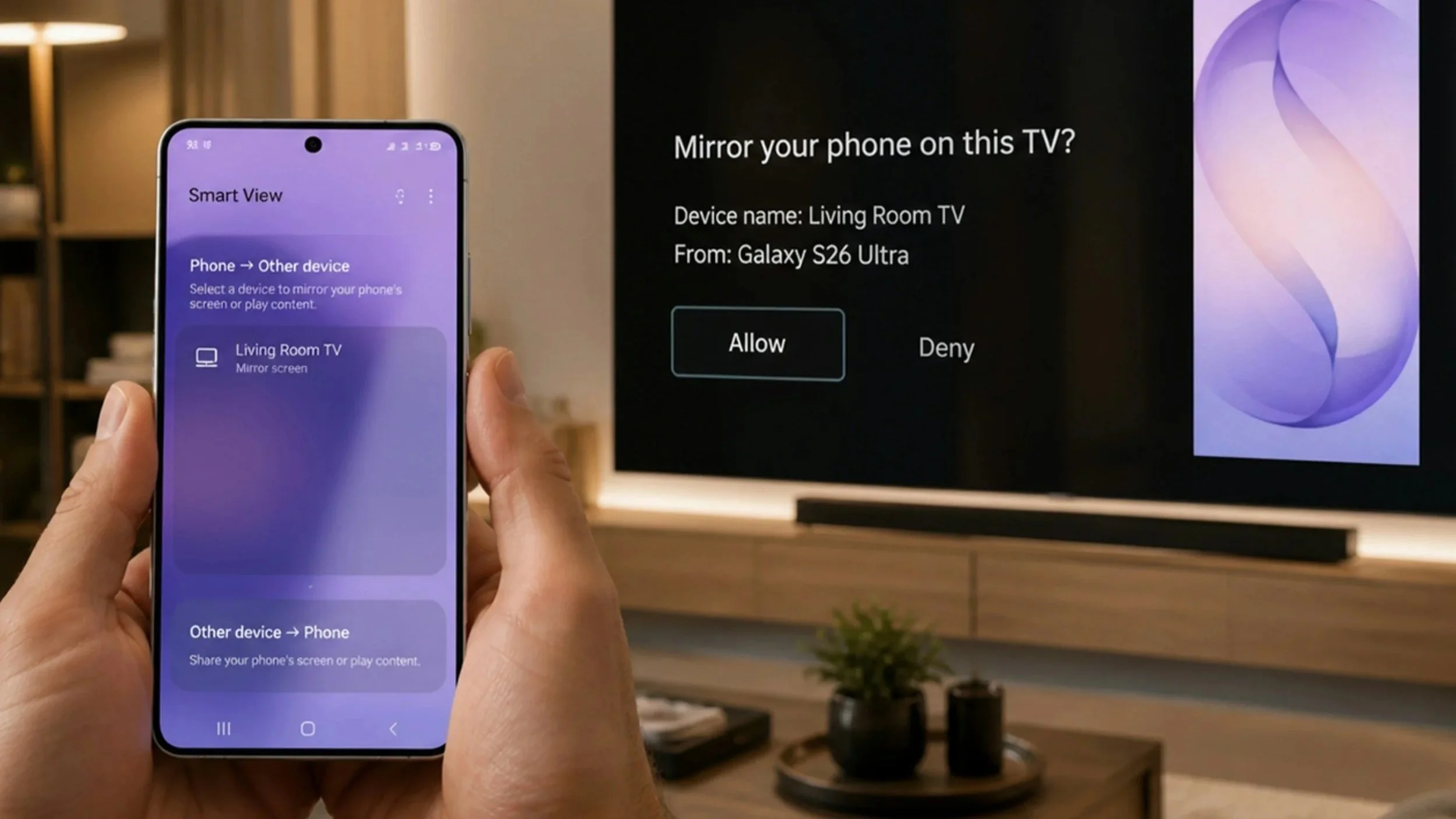
How to use Miracast
On a Windows PC
Turn on your TV and open its screen mirroring option (on many TVs, it's always ready in the background).
On your PC, press Windows key + K to open the Cast menu.
Select your TV from the list of available displays.
If asked, confirm the connection on the TV.
To stop, press Windows key + K again and choose Disconnect.
Tip: if you'd like to use the TV as a second screen rather than a copy of your laptop's display, press Windows key + P and choose Extend.
On an Android phone
Make sure screen mirroring is turned on on your TV.
Swipe down from the top of your phone's screen to open Quick Settings.
Tap Smart View, Cast, Screen mirroring or a similarly named tile. The name depends on your phone's brand.
Choose your TV from the list.
Accept the connection on the TV if prompted.
If your phone only lists Chromecast or Google TV devices, it doesn't support Miracast, and you'll need a TV or streaming device with Google Cast instead.
Miracast vs Google Cast vs AirPlay
Miracast simply mirrors your entire screen. The TV shows exactly what's on your device, so your phone or laptop has to stay on and connected the whole time, and anything you do on it, including notifications, appears on the big screen.
Google Cast (used by Chromecast and Google TV) and Apple's AirPlay work differently when you play a video from a supported app such as YouTube or Netflix. Your phone just tells the TV what to play, and the TV streams it directly from the internet. That means better picture quality, less battery drain and the freedom to use your phone for something else.
Both also offer full screen mirroring when you need it, but they require the phone and TV to be on the same Wi-Fi network, and AirPlay works only with Apple devices. For step-by-step instructions for every method, including HDMI cables, read our guide on how to connect your phone to a TV and share your screen.
Pros and cons of Miracast
Advantages:
Built into Windows, many Android phones and most smart TVs, with no extra apps needed
Works without an internet connection or router
An open standard supported by many brands
Quick and simple for presentations, photos and documents
Disadvantages:
Not supported by iPhones, iPads, Macs or Google Pixel phones
A noticeable delay, so it's not ideal for fast-paced games
Connections between devices from different brands can be unreliable
Your device has to stay on and mirror the whole time, which drains the battery
Usually limited to 1080p in practice
Is Miracast worth using in 2026?
Miracast isn't the newest or most polished way to get content onto a TV, but it's still one of the most practical. If you have a Windows laptop or an Android phone that supports it, you can mirror your screen to most TVs in seconds, with no extra hardware, apps or internet connection.
For watching films and series, casting from apps with Google Cast or AirPlay usually gives a better experience. If you're thinking about upgrading your TV setup, take a look at our ranking of the best streaming devices.
