Formatting a USB flash drive is one of those small jobs that's easy to get wrong. Pick the wrong file system and your TV won't read it, your Mac can't write to it or a large movie file simply refuses to copy. In this guide, I'll explain what formatting actually does, which file system to choose for each device and how to format a USB drive on Windows 11, macOS and ChromeOS, step by step.
What does formatting a USB drive do?
Formatting prepares a drive to store files by creating a new, empty file system on it. The file system is the set of rules that decides how files are organized, named and found, and different devices understand different file systems. That's why the same USB stick can work perfectly on a PC and show up as unreadable on a TV or games console.
Formatting erases everything that's on the drive, so copy anything you want to keep first. People usually format a USB drive to make it work with a specific device, to fix errors or corruption, to remove leftover files and partitions, or to wipe it before giving it away.
Choose the right file system
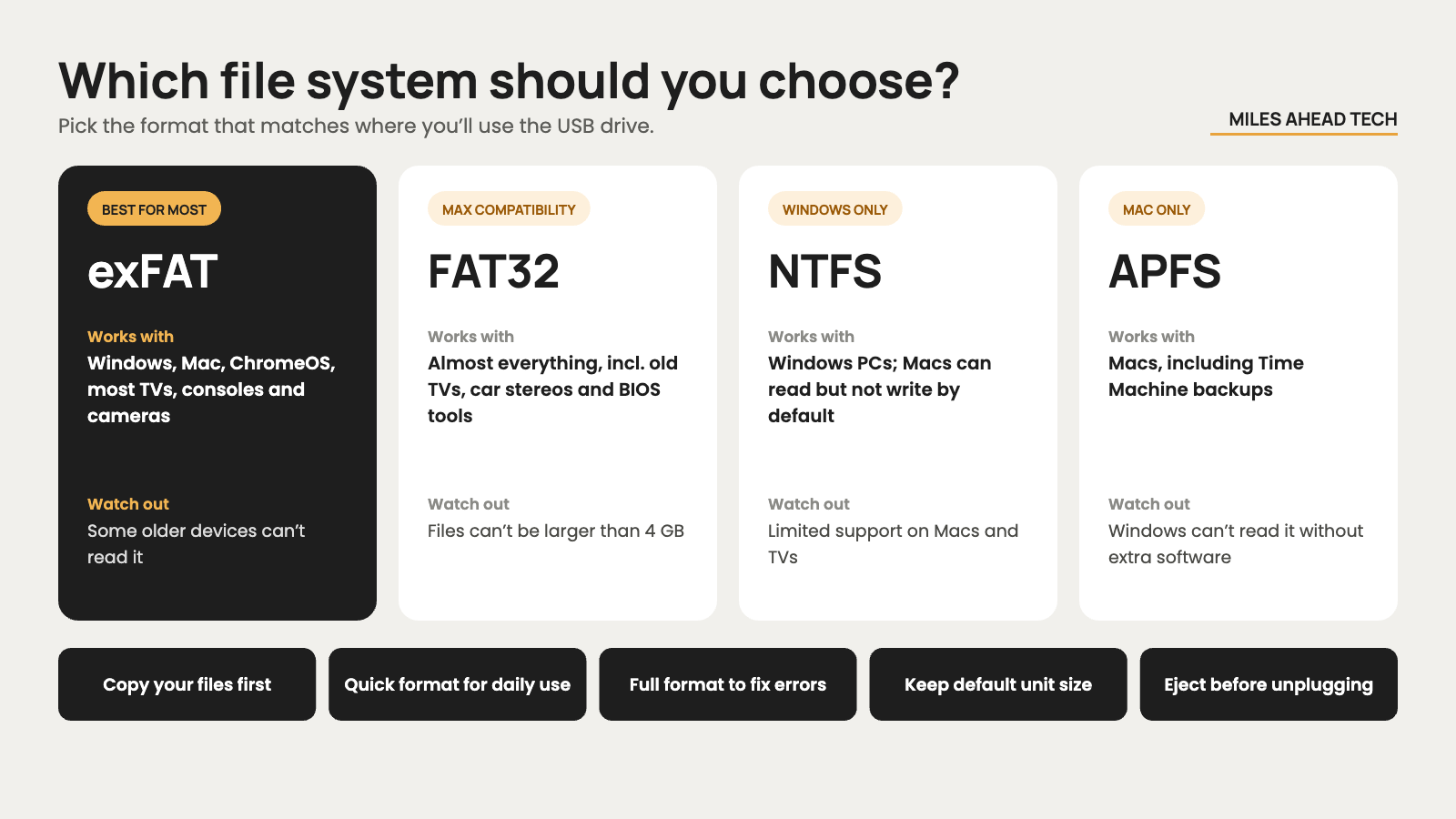
This is the most important decision. Here's a quick comparison:
| File system | Works with | Best for | Main limitation |
|---|---|---|---|
| exFAT | Windows, macOS, ChromeOS, Linux, most TVs, consoles and cameras | Everyday drives shared between devices | Some older devices don't support it |
| FAT32 | Almost everything, including old TVs, car stereos and BIOS tools | Maximum compatibility | Files can't be larger than 4 GB |
| NTFS | Windows; macOS can read but not write by default | Windows-only drives | Limited support on Macs and some devices |
| APFS | macOS | Mac-only drives and Time Machine | Not readable on Windows without extra software |
| Mac OS Extended (HFS+) | macOS, including older versions | Older Macs | Replaced by APFS on modern Macs |
For most people, exFAT is the best choice. It works on Windows, Mac and most modern TVs, cameras and consoles, and it handles large files. Choose FAT32 only when an older device, car stereo or BIOS update tool specifically asks for it, and pick NTFS or APFS only if the drive will be used with just Windows or just Macs.
Allocation unit size: leave it on default
When formatting, you'll see an option called allocation unit size or cluster size. It sets the smallest block of space a file can take up. Larger units can be slightly faster for big files but waste more space with many small ones. The default value is the right choice for almost everyone, so you can safely ignore this setting.
Quick format vs full format
A quick format just creates a new, empty file system. It takes a few seconds, and the old files are no longer visible, although they could still be recovered with special software. A full format also checks the whole drive for bad sectors, which takes much longer, and on Windows it overwrites the data with zeros. Use a quick format for everyday use, and a full format when the drive has been giving errors or you want to make old files harder to recover.
How to format a USB drive on Windows 11
Plug in the USB drive and open File Explorer.
Click This PC, then right-click the USB drive and choose Format.
Pick a file system: exFAT for most uses, FAT32 for older devices or NTFS for Windows-only use.
Leave the allocation unit size on default and type a name in Volume label if you want.
Keep Quick Format ticked unless you want a full format, then click Start and confirm.
If the drive doesn't show up in File Explorer, or its size looks wrong, open Disk Management by right-clicking the Start button. There you can delete old partitions on the USB drive and create a new one. Be very careful to select the right disk, because deleting a partition on your main drive will erase your data.
How to format a USB drive on a Mac
Plug in the USB drive and open Disk Utility from Applications, then Utilities, or search for it with Spotlight.
In the View menu, choose Show All Devices, then select the USB drive itself in the sidebar, not just the volume below it.
Click Erase and type a name.
Choose the format: ExFAT to use the drive with Windows and other devices, or APFS if you'll only use it with Macs.
For Scheme, choose Master Boot Record for the widest compatibility with Windows, TVs and older devices, or GUID Partition Map for Mac-only use. Then click Erase.
How to format a USB drive on ChromeOS
Open the Files app, right-click the USB drive in the left sidebar and choose Format device. Pick FAT32, exFAT or NTFS, give the drive a name and click Format. On Linux, the built-in Disks utility works in a similar way and also offers ext4, which is best only for Linux-only drives.
Formatting for a TV, console, car or camera
Devices other than computers can be picky. Smart TVs usually read FAT32 and exFAT, and many also read NTFS, but it varies by brand and model. PS5 and Xbox consoles use exFAT or FAT32 for media and backups, although a USB drive used as extended game storage gets formatted by the console itself. Car stereos and older media players often only understand FAT32, and cameras should always format their memory cards themselves, in the camera's menu.
When in doubt, format the drive in the device you'll use it with, if it offers that option. Using a USB stick to save recordings or share videos with your TV? Our guides on connecting your phone to a TV and where to store your phone photos cover the alternatives.
Secure erase: before you give the drive away
A quick format doesn't really remove your files. Before you sell or give away a drive that held personal data, do a full format on Windows, or use the security options in Disk Utility on a Mac if they're available. Keep in mind that flash drives spread data across their memory cells in ways that formatting tools can't fully control. For truly sensitive data, encrypting the drive from the start with BitLocker To Go or an encrypted APFS volume is the safest approach, and physically destroying very cheap drives is often simpler than wiping them.
USB drive won't format? Common fixes
If Windows says it can't complete the format, first close any apps or windows using the drive, then try again. Check whether the drive has a physical write-protect switch, which some SD cards and older sticks do. In Disk Management, deleting the existing partitions and creating a new simple volume often fixes drives that show the wrong size after being used for a bootable installer.
If the drive is very slow, disconnects or keeps showing errors after formatting, it's probably failing. Flash memory wears out over time, and very cheap or fake high-capacity drives are common. A reliable drive from a known brand, like the Samsung BAR Plus, is a better choice than an unknown bargain. For larger files and backups, a portable SSD is faster and more durable, and you'll find the best options in our external SSD ranking.
Final thoughts
Formatting a USB drive only takes a minute once you know which file system to pick. Use exFAT for most drives, FAT32 for older devices that need it, and NTFS or APFS for single-platform use. Always copy your files first, use a quick format for everyday jobs and a full format when you're fixing errors or passing the drive on.
