Wi-Fi Direct is one of those features you probably use every week without knowing it. It's the technology that lets your phone send photos to a friend's phone, print from a printer that isn't on your home network or mirror your laptop to a TV, all without a router in the middle. In this guide, I'll explain what Wi-Fi Direct is, how it works, how it compares with Bluetooth and where you'll find it on Android, iPhone and Windows in 2026.
What is Wi-Fi Direct and how does it work?
Wi-Fi Direct is a standard from the Wi-Fi Alliance that lets two or more devices connect to each other over Wi-Fi without a router. Instead of each device talking to your router, one of them briefly takes on the role of a small access point (called the group owner) and the others connect to it. You don't need an internet connection for this, and the data stays in the room.
When you start a feature that uses Wi-Fi Direct, your device scans for nearby devices, such as a printer or a TV that's ready for mirroring. You usually confirm the connection by accepting a prompt, entering a PIN, scanning a QR code or pressing a button, and the link closes again when you're done.
Because it uses Wi-Fi rather than Bluetooth, a direct link can move far more data, which is why it's used for large files, screen mirroring and print jobs. Real-world speed depends on the Wi-Fi generation, the band and interference, so treat any “Wi-Fi Direct speed” figure you see online as an example rather than a promise.
Wi-Fi Direct is also a building block, not an app. Features like Quick Share, Miracast and printer apps are built on top of it, which is why many phones support Wi-Fi Direct without showing a menu with that name. And because a direct connection doesn't give you internet access, your phone may warn that a printer's or camera's network has “no internet”. That's normal, and the transfer doesn't use your mobile data.
Wi-Fi Direct vs Bluetooth, Wi-Fi Aware and a hotspot
These technologies often work together, which makes them easy to confuse. Here's how they differ:
| Technology | What it does | Typical use |
|---|---|---|
| Wi-Fi Direct | Fast direct connection between Wi-Fi devices, no router needed | Printing, screen mirroring, cameras, file sharing, device setup |
| Bluetooth | Low-power, short-range radio for accessories and small amounts of data | Headphones, keyboards, wearables, controllers, finding nearby devices |
| Wi-Fi Aware | Lets nearby devices discover each other and talk directly on supported phones | Proximity features and newer cross-device experiences |
| Mobile hotspot | Your phone shares its internet connection like a regular router | Getting a laptop or tablet online through cellular data |
| LocalSend and similar apps | Cross-platform file sharing over your local network | Transfers between Windows, Mac, Linux, Android and iPhone |
What is Wi-Fi Direct used for?
The most common use is nearby file sharing. Quick Share on Android and AirDrop on Apple devices use Bluetooth to find nearby devices and then switch to a direct Wi-Fi link to move the files, which is why a 2 GB video goes across in seconds rather than minutes.
Wireless displays are the second big use. Miracast relies on Wi-Fi Direct to mirror or extend a Windows or Android screen to a TV, projector or adapter. Learn more about this technology from our guide on what Is Miracast and how it works.
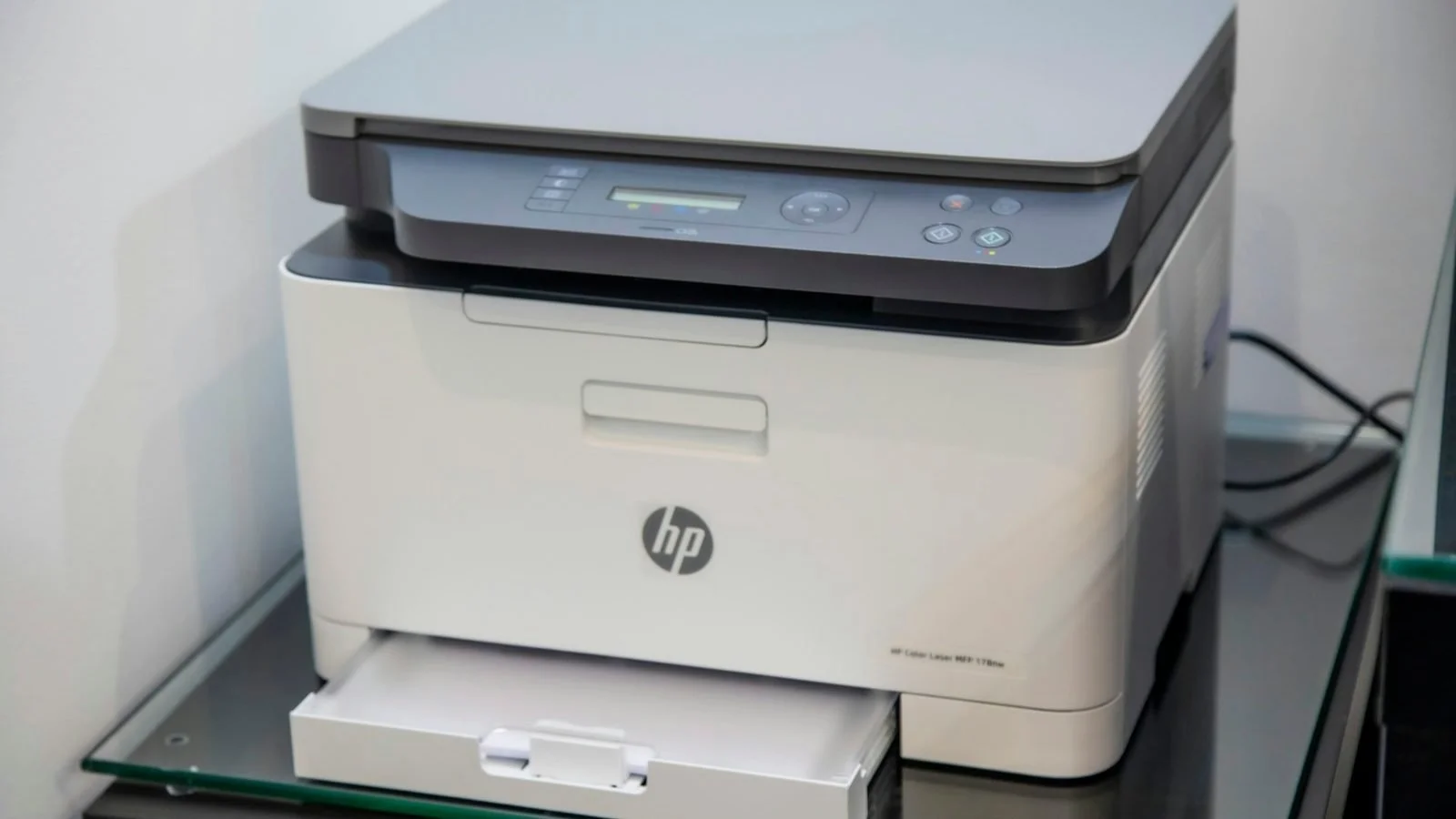
Many printers and scanners create their own “DIRECT-” network so you can print without joining your home Wi-Fi. Cameras and drones use a direct link for live view and photo transfer, and smart home gadgets often create a temporary network during setup so the app can give them your Wi-Fi password.
How to use Wi-Fi Direct on Android, iPhone and Windows
On Android, you won't usually find a Wi-Fi Direct menu for sharing files anymore. Sharing goes through Quick Share, which replaced Google's Nearby Share and Samsung's older sharing features and picks the best connection on its own:
Turn on Wi-Fi and Bluetooth on both phones and make sure the receiving phone is visible in Quick Share.
Open the photo, video, file or link you want to send, tap Share and choose Quick Share.
Pick the receiving device from the list.
On the other phone, check the sender's name and accept the transfer. Keep both screens on and the phones close until it's finished.
If you set visibility to “Everyone” for a quick transfer, switch it back to “Contacts” or “Your devices” afterward so strangers can't send you files.
On iPhone, iPad and Mac, Apple doesn't give you a Wi-Fi Direct setting, but its devices use peer-to-peer Wi-Fi behind the scenes. For Apple-to-Apple sharing, simply use AirDrop. Google's Quick Share now also works with AirDrop on the Pixel 11 and a growing list of other Android phones. If it doesn't show up on your devices, a free cross-platform app like LocalSend is a reliable fallback when both devices are on the same Wi-Fi network.
On Windows 11, File Explorer doesn't have a Wi-Fi Direct button. To share files, use Nearby sharing, Quick Share for Windows on supported PCs or an app like LocalSend. To mirror your screen, press Windows key + K or choose Cast in Quick Settings, then pick your TV or adapter, which needs to support Miracast.
How to connect to a Wi-Fi Direct printer
Turn on Wi-Fi Direct on the printer using its display, a button combination or the manufacturer's app.
Find the printer's network name, usually something like "DIRECT-xx-Printer", and its password. Both are typically shown on the screen or on a printed network report.
On your phone or computer, use the manufacturer's app, AirPrint on Apple devices, Mopria on Android or the system's "Add printer" option.
If the app asks you to, join the printer's DIRECT network and enter the password. Your device may warn that there's no internet, which is normal.
Print a test page, then reconnect to your normal Wi-Fi if your device didn't switch back automatically.
Direct printing is handy when there's no router around, such as in a small office or on the road. At home, it's usually more convenient to connect the printer to your normal network so everyone can use it. Many affordable laser printers support both, including the Brother HL-L2460DW.
How to mirror your phone or laptop to a TV
Wi-Fi Direct support alone doesn't mean you can mirror your screen. Both devices also need the same mirroring protocol, usually Miracast for Windows and many Android devices, or AirPlay for Apple devices. If you want to know more about it, read our guide on AirPlay and how to use it properly. Check what your TV supports, which might be called Screen Mirroring, Smart View, Miracast, AirPlay or Google Cast, and turn on its mirroring mode.
Then press Windows key + K on Windows, use Smart View on a Samsung phone or Screen Mirroring on an iPhone, iPad or Mac. Other Android phones vary by brand, so look for “Cast” or “Screen mirroring” in Quick Settings, then accept the prompt on the TV.
For Netflix, YouTube and other streaming apps, use the app's own Cast or AirPlay button instead of mirroring, because protected video often shows a black screen. For a smooth picture in games or presentations, a cable is still the best option, and our guide to choosing the right HDMI cable explains which one to get.
You'll find every wired and wireless option in our guide on how to connect your phone to a TV.
Is Wi-Fi Direct safe?
Wi-Fi Direct connections are encrypted with standard Wi-Fi security, but that doesn't make them risk-free. Only accept connections and files from people and devices you recognize, keep your phone, printer, TV and camera firmware up to date, and use PIN, QR code or button confirmation instead of leaving an accessory open for anyone to pair.
Turn off printer direct mode or broad Quick Share visibility when you don't need it, and remove saved connections or reset network settings before you sell or give away a device. Android also randomizes the hardware addresses it uses for Wi-Fi Direct on supported devices, which makes it harder to track your phone, although it doesn't make you anonymous.
Wi-Fi Direct not working? Common fixes
| Problem | What to do |
|---|---|
| The other device doesn't appear | Turn on Wi-Fi and Bluetooth, allow location or nearby-device permissions for the app, move the devices closer and make the receiver visible. |
| There's no Wi-Fi Direct menu | Use the feature's own app instead, such as Quick Share, the printer or camera app, or the Cast menu. Many devices hide raw Wi-Fi Direct settings. |
| Devices pair but the transfer fails | Keep both screens on, check free storage, turn off battery restrictions for the app and remove the old connection before trying again. |
| Internet stops working | The printer's or camera's network has no internet. Finish the task, disconnect and rejoin your normal Wi-Fi. |
| Screen mirroring isn't available | Check that both devices support the same protocol, such as Miracast or AirPlay. Wi-Fi Direct support alone isn't enough. |
| Mirrored video lags | Move closer, reduce interference, use 5 GHz if available, lower the resolution or switch to an HDMI cable for games and presentations. |
| A work or school device blocks it | Device management or network policies may disable direct connections. Ask your IT administrator. |
When to use something else
Wi-Fi Direct isn't always the best tool. A USB cable is more predictable for very large transfers and anything where low latency matters. If you regularly access the same files, a shared folder, NAS or media server on your home network is more convenient. Cloud storage is better when the other person isn't nearby, and Bluetooth remains the right fit for headphones, keyboards and game controllers. Our article explaining what exactly is a NAS and if you actually need one covers that.
Wi-Fi Direct is still an important part of how our devices talk to each other, but it's increasingly hidden behind simpler features. Most of the time, you'll use it through Quick Share, AirDrop, Miracast or a printer or camera app. When something doesn't work, start with the feature you actually need and check that both devices support the same protocol.
